
Adding a Popup Dialog Box
This tutorial walks you through setting up a popup dialog box on your website. By the end, you'll have a popup that displays once per session and can be easily toggled on or off without touching any code.
Step 1: Create the Popup Page
First, create a page to hold your popup content. This page needs to exist but stay hidden from visitors.
If you have an include or templates page, use that. Otherwise, create a new parent page with the following settings:
- Offline: unchecked
- Hidden in Navigation: checked
- Hidden in Sitemap: checked
Under that parent page, create a child page for your popup content. Your page structure should look like this:
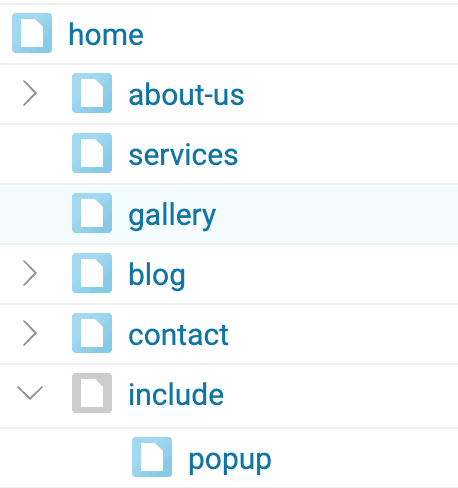
In this example, your page URL is /include/popup. Add your content on that page and save.
Then go to Settings within the page editor and set the page attributes to:
- Hidden in Navigation: unchecked
- Hidden in Sitemap: checked
- Offline: unchecked (important — the page must remain online for the code to work)
Step 2: Add the Popup Code to Your Design Template
Next, add the dialog box code to your website's design template.
- Go to Dashboard > Design > Templates
- Open your default design template and click Edit
- Click the Source icon in the left panel
- Paste the following code just before the closing </body> tag
<logic:if test="\Components\Website\Pages::getColumn('/include/popup/', 'page_is_hidden_in_navigation') == 0"> <forms:dialogbox id="dialogbox_siteAds" autoshow="once" width="600"> <logic:include page="/include/popup/" /> </forms:dialogbox> </logic:if> - Click Save
Note: Update /include/popup/ if your popup page uses a different URL.
This code checks whether the popup page is visible in navigation. If it is, the dialog box is displayed once per session. To learn more about the dialogbox component, refer to the API documentation.
Step 3: Activate or Deactivate the Popup
You can toggle the popup on or off at any time through the page settings — no code changes needed.
- To enable: Go to the popup page settings and uncheck "Hidden in Navigation"
- To disable: Go to the popup page settings and check "Hidden in Navigation"
Important: Always leave the Offline checkbox unchecked. Setting the page to offline will break the logic check in your template.