
Event-based Calendar
This article explains how to display your Events on a calendar view within your website. The calendar will automatically show all events created in the Events module, organised by date.
Source Code
You can add the calendar to a new or existing page. In the page editor, click Source in the left panel, then paste the following HTML in the HTML section:
Design Examples
To enhance the layout and improve usability, paste the following into your page’s CSS tab:
- CSS Styling
- Preview
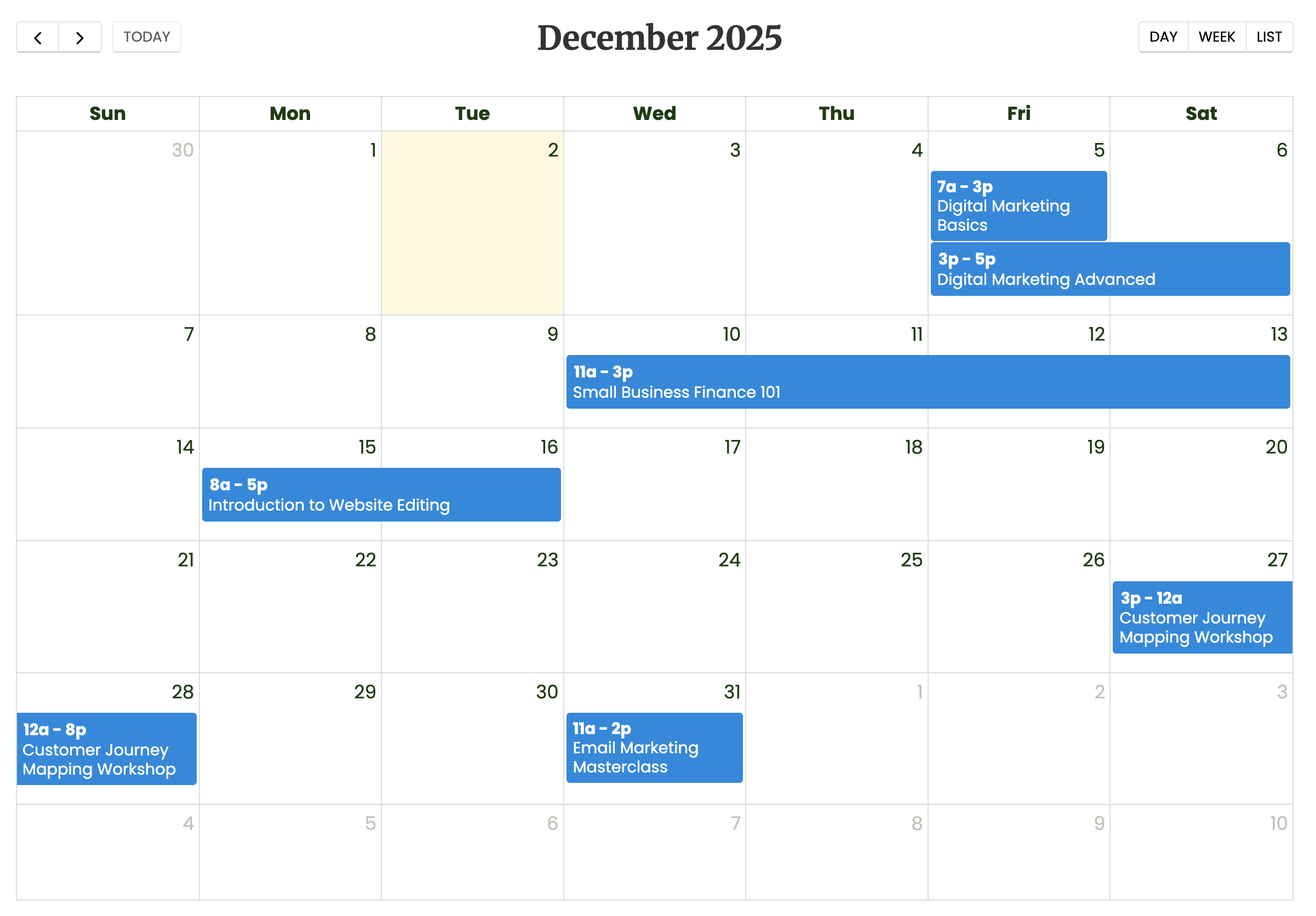
Layout 2
Designed with a minimalist style to highlight the events occurring in a given month, and if applicable, a photo thumbnail will be included for visual representation.
- Markup
- CSS Styling
- Preview
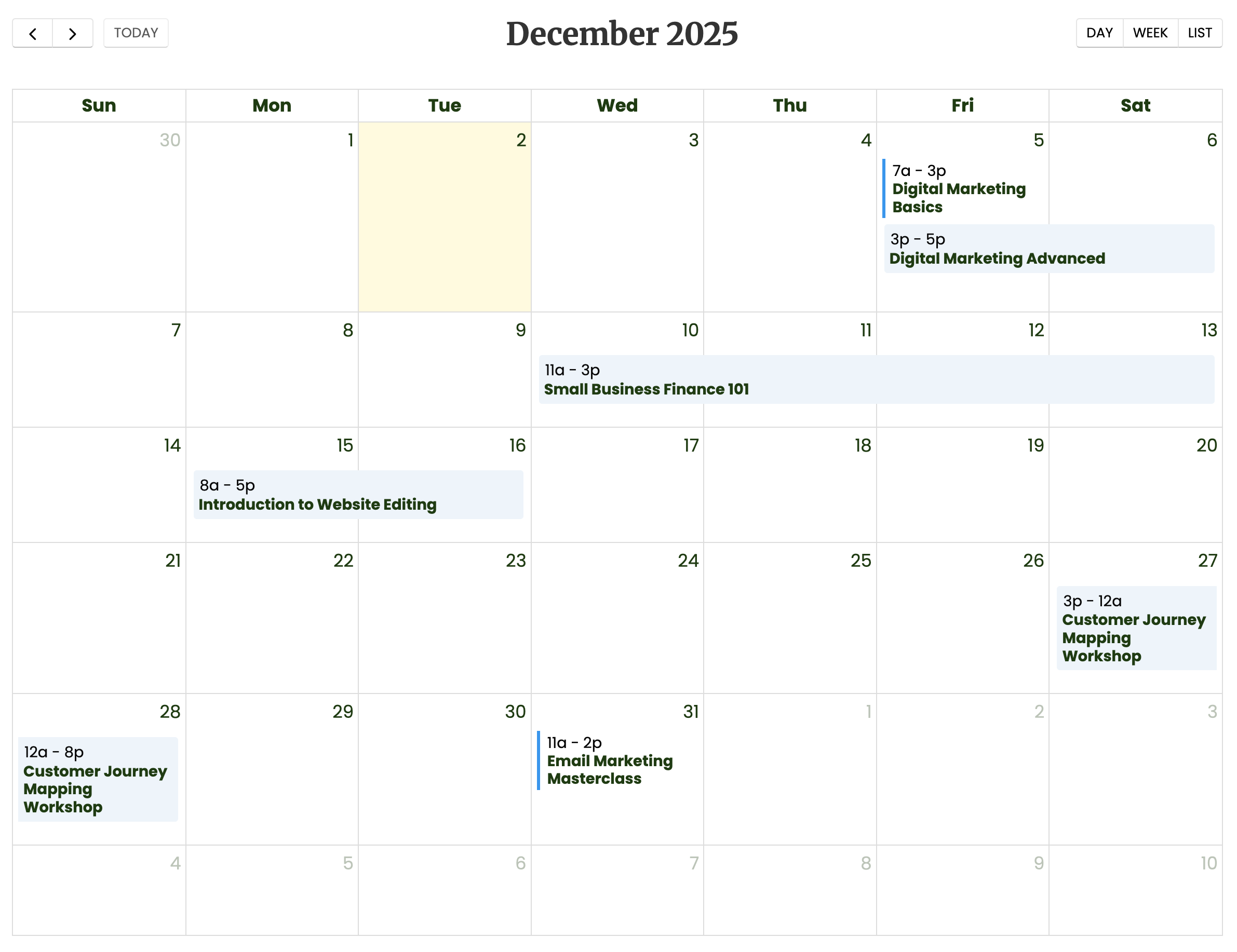
Layout 3
This calendar is ideal for events that have additional descriptions. A popup will appear to display further information by hovering over each event.
- Markup
- CSS Styling
- Preview
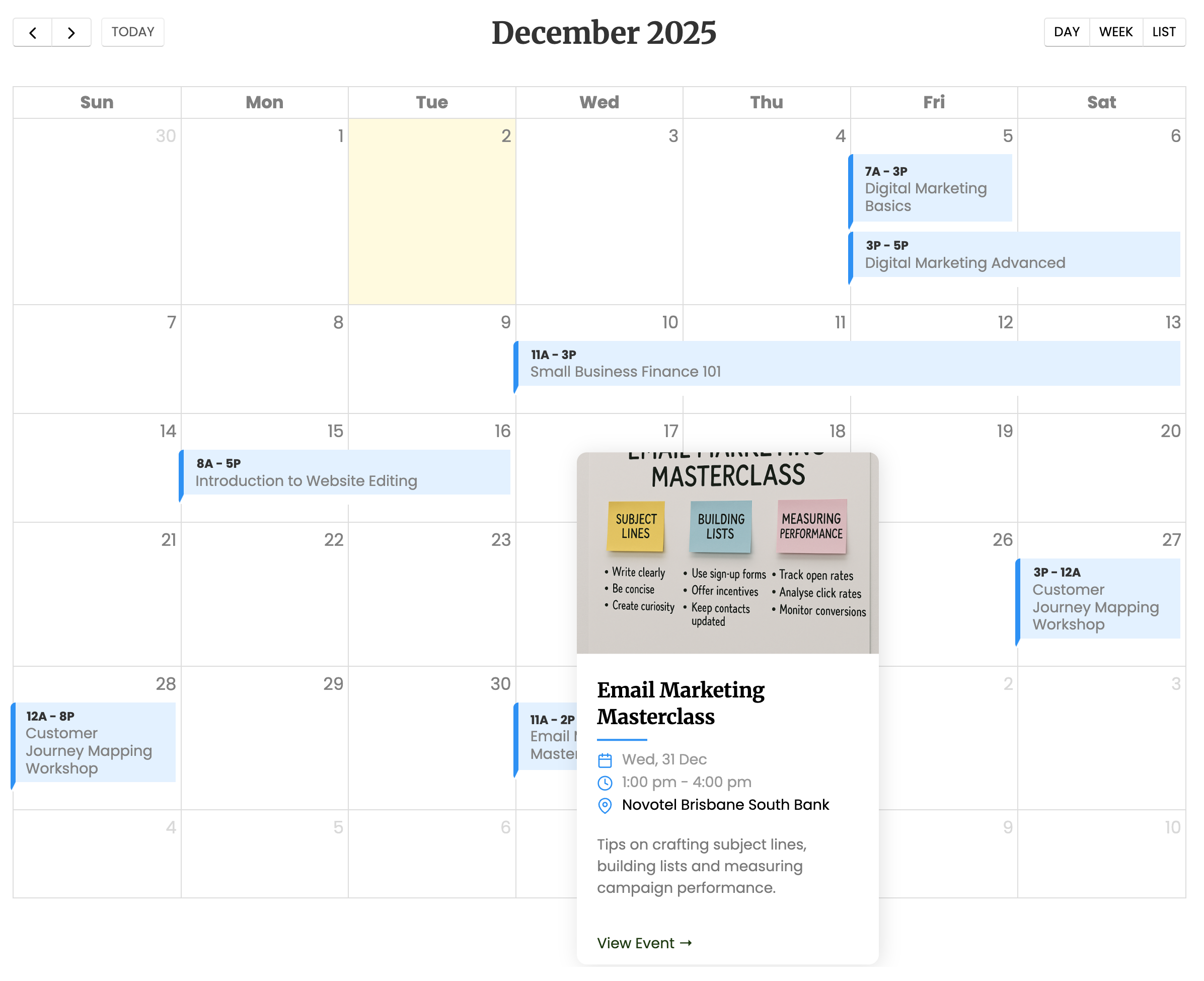
Note: The appearance of the calendar may vary depending on your website’s existing CSS. You may need to adjust or tweak
the provided styles to match your website’s design.