
-
Website
-
3min Explainer Walkthrough

- Generate a Design
-
Page Management

-
Page Editing

-
Form Builder

- Updating Your Navigation Menu
- Creating Page Redirectors
- Posts Management
-
Search Engine Optimization (SEO)

- Setting Up Google Marketing Tools
- Setting Up Meta Pixel & E-commerce Tracking
- Setting Up Microsoft Marketing Tools
- Setting Up Reddit Pixel and E-commerce Tracking
- Setting Up Linkedin Insight Tag
- Optimizing Images For Web
-
Analytics

- Third Party Embed Code
- Special Files
- Setting Up OpenAI Ads Manager
-
3min Explainer Walkthrough
- Contacts
- Marketing
- Commerce
- Apps
- Settings and Config











Recurring Sales
Learn how to configure the recurring sales feature.
Understanding Recurring Sales
The Recurring Sales app allows you to charge customers on a recurring basis, and is often used for paid memberships.
After Recurring Sales are enabled, Products may be configured with a recurring price, rather than a once-off price.
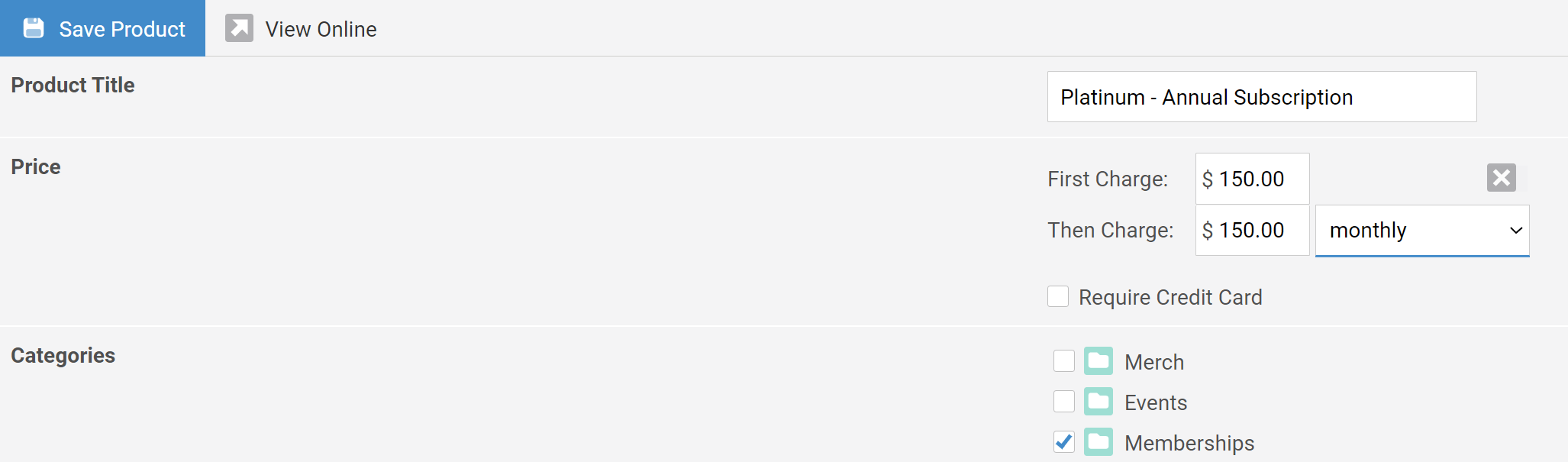
Purchase of the above Product will create a recurring billing schedule, which will generate invoices and charge the customer via the
selected payment method. Via the Dashboard, you can edit, pause and terminate recurring billing plans.
You can setup a recurring sale to charge customers weekly, fortnightly, monthly, every two months, quarterly, half-yearly or yearly.
Automation Triggers
If you are using Recurring Sales with the Marketing features, the following automation triggers will be available:
Approaching a billing date:
Use this trigger to notify customers before their next billing date.
This trigger runs when a recurring sale is due to create its next invoice. You can choose how many days before the billing date the automation should run.
When a Recurring Sales invoice is paid:
Use this trigger to send a payment confirmation or add customers to a members group after a recurring payment is received.
This trigger runs when a sales invoice linked to a recurring billing schedule is marked as paid.
When a Recurring Sale is overdue:
Use this trigger to notify customers when their recurring sale invoices have not been paid.
You can also use it to remove contacts from membership groups after a failed payment. You can choose the minimum number of unpaid invoices
and the number of days since the last payment.
When a recurring sale plan is created:
Use this trigger to run an automation when a recurring sale plan is created.
This can be used to send a welcome message, notify your team, or add the contact to a members group when a new subscription, membership, or recurring billing plan starts.
When a Recurring Sale is terminated:
Use this trigger to run an automation when a recurring sale plan is terminated.
This can be used to notify your team, remove a contact from a members group, or send a follow-up message when a subscription, membership, or recurring billing plan has ended.
When a stored card is expiring soon:
Use this trigger to notify customers before their stored credit card expires.
This can prompt customers to update their payment details before the next billing date. You can choose how many days before the card expiry date the automation should run.
App Requirements
In order to use the recurring sales app your Oncord plan must include the Commerce features. To change your plan click here to contact us.
Not all credit card payment gateways support recurring sales - please see the list here.
You may also charge customers via bank transfer / direct deposit via the recurring sales app, which will raise invoices marked as unpaid.
Pricing
Use of the recurring sales app attracts a 0.5% fee in addition to your Oncord pricing plan. This fee helps us continue to improve recurring sales functionality, as well as cover costs for general maintenance and support.
The calculated fee will be added to your Oncord monthly subscription. You can review all invoices and charges to your account through the dashboard: Dashboard > Settings > My Account.
How to Enable the Add-on
To enable the add-on:
A notice will appear to confirm that the app was installed successfully, and a "Recurring Sales" link will be added under the Commerce heading in the left sidebar of the dashboard.