
-
Website
-
3min Explainer Walkthrough

- Generate a Design
-
Page Management

-
Page Editing

-
Form Builder

- Updating Your Navigation Menu
- Creating Page Redirectors
- Posts Management
-
Search Engine Optimization

- Setting Up Google Marketing Tools
- Setting Up Meta Pixel & E-commerce Tracking
- Setting Up Microsoft Marketing Tools
- Setting Up Linkedin Insight Tag
- Optimizing Images For Web
-
Analytics

- Third Party Embed Code
-
3min Explainer Walkthrough
- Contacts
- Marketing
- Commerce
- Apps
-
Settings and Config
- Going Live
- Billing
- Domain Health Checker
- Managing Administrators
- Registering a Domain Name
- Changing Your Domain Name
- The Role of DNS Records Explained
- Backing Up Your Website
- Choosing an E-mail Host
- Hosting Email With Oncord
- Setting Up Gmail Hosting
- Setting Up Microsoft 365 E-mail Hosting
- Setting Up Sub Domains
- Hosting a Sub-Site










Terms and Conditions
Terms and Conditions are important for protecting your business by outlining policies and limitations for customers. This feature allows you to display agreement statements during checkout and control when they appear based on products, categories, and other conditions.
This article explains how to configure Terms and Conditions in Oncord.
Create a new Terms & Conditions
- Navigate to Dashboard > Settings > Commerce > Terms and Conditions.
- Click New Terms & Conditions.
- Enter a Title - This is the label shown to customers at checkout.
-
Configure Shown When
if the terms should only appear in certain situations.
-
Choose a Display Type.
- Add the terms content.
- Enable the Enabled toggle and then click Save Terms & Conditions.
Control When Terms are Shown
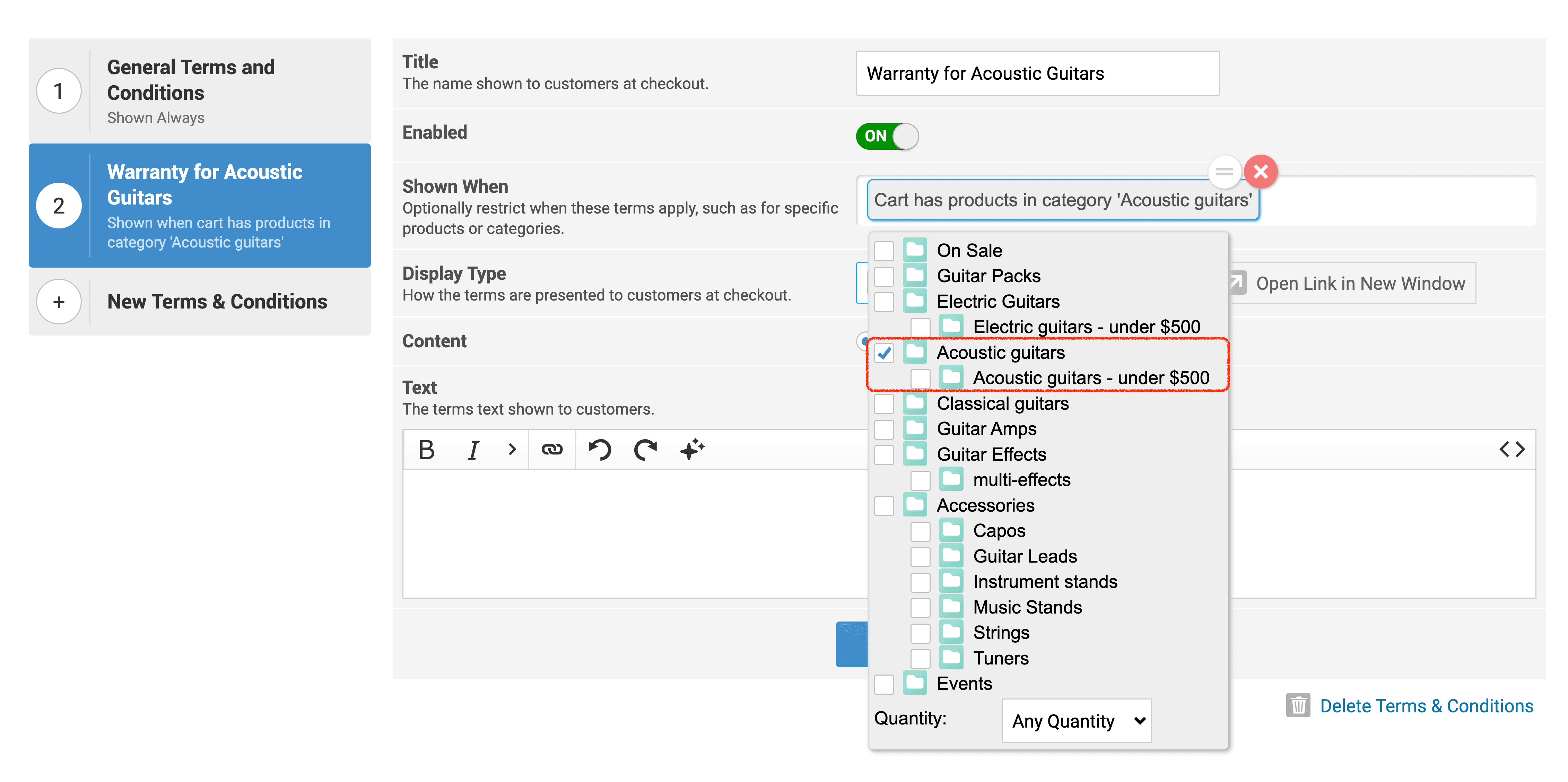
The Shown When field allows you to control when the terms appear during checkout.
Leave this field empty if the terms should apply to all orders (for example, general Terms and Conditions).
Oncord provides a list of conditions you can use to control when the terms are displayed. Multiple conditions can be added to refine when they appear.
Example
You may want to show a warranty notice only when:
- The cart contains products in the Acoustic guitars category.
You might also display additional clauses when:
- The order value exceeds a certain amount.
- A specific shipping method is used.
- The order is being shipped internationally.
Choose How the Terms are Displayed
Under Display Type, select how the content will appear to customers.
-
As a Block of Text
Displays the terms directly within the checkout page.
-
In a Dialog
Opens the terms in a modal window.
-
Open Link in New Window
Opens the terms in a new browser tab or window.
Add the Terms Content
Under Content, choose one of the following options.
Option 1: Enter the Terms Directly
- Select Specified Below.
- Enter the terms in the Text editor.
- Save the changes.
This keeps the terms managed directly within the checkout settings.
Tip: You can use the Oncord AI Assistant to help generate a terms template.
Option 2: Include Terms from a Page
You can also import content from an existing page on your website. This allows you to manage the terms in one place and reuse them during checkout.
- Select Included from a Page.
- Enter the page path (for example: /terms-and-conditions/).
- Click Save Terms & Conditions.
The system will load the content from that page and display it during checkout.
Tips & notes
- Multiple terms can be displayed during checkout if several conditions are met.
- Drag and drop entries in the list to control their order.
- Use conditional terms for warranties, shipping rules, or product-specific agreements.
- Linking terms to a page allows you to update them in one place without editing the checkout settings.