
-
Website
-
3min Explainer Walkthrough

- Generate a Design
-
Page Management

-
Page Editing

-
Form Builder

- Updating Your Navigation Menu
- Creating Page Redirectors
- Posts Management
-
Search Engine Optimisation (SEO)

- Setting Up Google Marketing Tools
- Setting Up the Meta Pixel and E-commerce Tracking
- Setting Up Microsoft Marketing Tools
- Setting Up Reddit Pixel and E-commerce Tracking
- Setting Up Linkedin Insight Tag
- Optimizing Images For Web
-
Analytics

- Third Party Embed Code
- Special Files
- Setting Up OpenAI Ads Manager
-
3min Explainer Walkthrough
- Contacts
- Marketing
- Commerce
- Apps
- Settings and Config











- Website
-
-
3min Explainer Walkthrough
- Generate a Design
-
Page Management
-
Page Editing
-
Form Builder
- Updating Your Navigation Menu
- Creating Page Redirectors
- Posts Management
-
Search Engine Optimisation (SEO)
- Setting Up Google Marketing Tools
- Setting Up the Meta Pixel and E-commerce Tracking
- Setting Up Microsoft Marketing Tools
- Setting Up Reddit Pixel and E-commerce Tracking
- Setting Up Linkedin Insight Tag
- Optimizing Images For Web
-
Analytics
- Third Party Embed Code
- Special Files
- Setting Up OpenAI Ads Manager
-
3min Explainer Walkthrough
- Contacts
- Marketing
- Commerce
- Apps
- Settings and Config
Adding A Google Map To A Page
Add a Google Map to a page to show visitors where to find you. A map with one marker works without your own API key. Use a Google Maps API key for more markers or to customise the map's centre, scroll wheel zoom or style.
Inserting a Google Map
- Go to Dashboard > Website > Pages.
- Open the page you want to edit. If you need a page first, create a new page.
- Click Insert on the left.
- Drag the Map element to where you want it on the page.
Configuring The Map
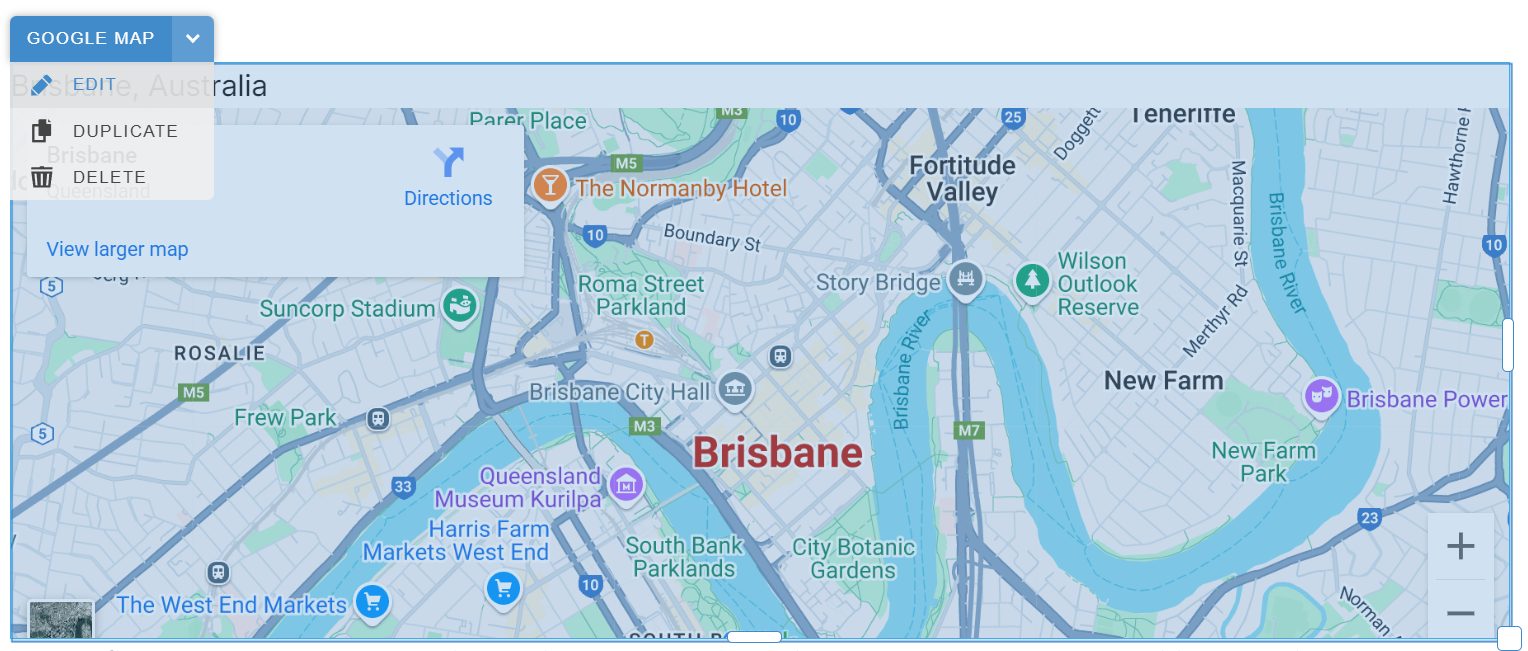
- Select the map in the editor.
- Click Edit in the map toolbar to open Google Map Properties. If the toolbar is collapsed, click its arrow to reveal Edit.
Set the Location and Size
- Under Edit Markers, replace the example Address with the address you want to show.
- Set the width and height. A width of
100%fills the space available to the map. - Tick Set Custom Zoom to set a starting zoom level.
- Adjust the zoom slider.
Add More Markers or Change the Map Style
- Click Get API Key Here if you need to set up a Google Maps API key.
- Paste your key into Google Maps API Key in the Google Map Properties panel.
- Click Add Marker to add another location.
- Enter the new marker's Address. You can also give the marker a Title.
Once you've entered a valid key, you can also use these options.
- Center At sets the starting centre of the map to an address.
- Enable Scroll Wheel Zoom allows visitors to zoom using their mouse wheel.
- Choose Map Style opens the Map Styles panel, where you can select a style.