
-
Website
-
3min Explainer Walkthrough

- Generate a Design
-
Page Management

-
Page Editing

-
Form Builder

- Updating Your Navigation Menu
- Creating Page Redirectors
- Posts Management
-
Search Engine Optimization (SEO)

- Setting Up Google Marketing Tools
- Setting Up Meta Pixel & E-commerce Tracking
- Setting Up Microsoft Marketing Tools
- Setting Up Reddit Pixel and E-commerce Tracking
- Setting Up Linkedin Insight Tag
- Optimizing Images For Web
-
Analytics

- Third Party Embed Code
- Special Files
- Setting Up OpenAI Ads Manager
-
3min Explainer Walkthrough
- Contacts
- Marketing
- Commerce
- Apps
- Settings and Config











Managing DNS Records
If your domain name is pointed towards Oncord's name servers, you can view and change your domain's DNS records from your Oncord Dashboard. This guide covers adding a new record, editing an existing one, deleting a record, and choosing where your e-mail is delivered.
Before You Begin
- These settings only take effect when your domain points to Oncord's name servers (ns1.oncord.com etc). To check, open the domain and compare the Recommended and Current name servers at the top of the page.
- If the DNS Records section shows a message that DNS is hosted externally, your records are managed with another provider and changes here won't apply. Make the change there instead.
- Some records are managed automatically by Oncord (for example, your website's A records and SSL validation records). These can't be deleted, and you don't need to change them.
- Oncord's support for DNS is limited. See DNS support scope at the end of this article before requesting help with a third-party service.
Open The DNS Records Editor
- Log in to your Oncord Dashboard.
- Click the Settings icon at the bottom of the left-hand sidebar.
- Select Domains.
- Click the domain you want to edit.
Understand The DNS Records Table
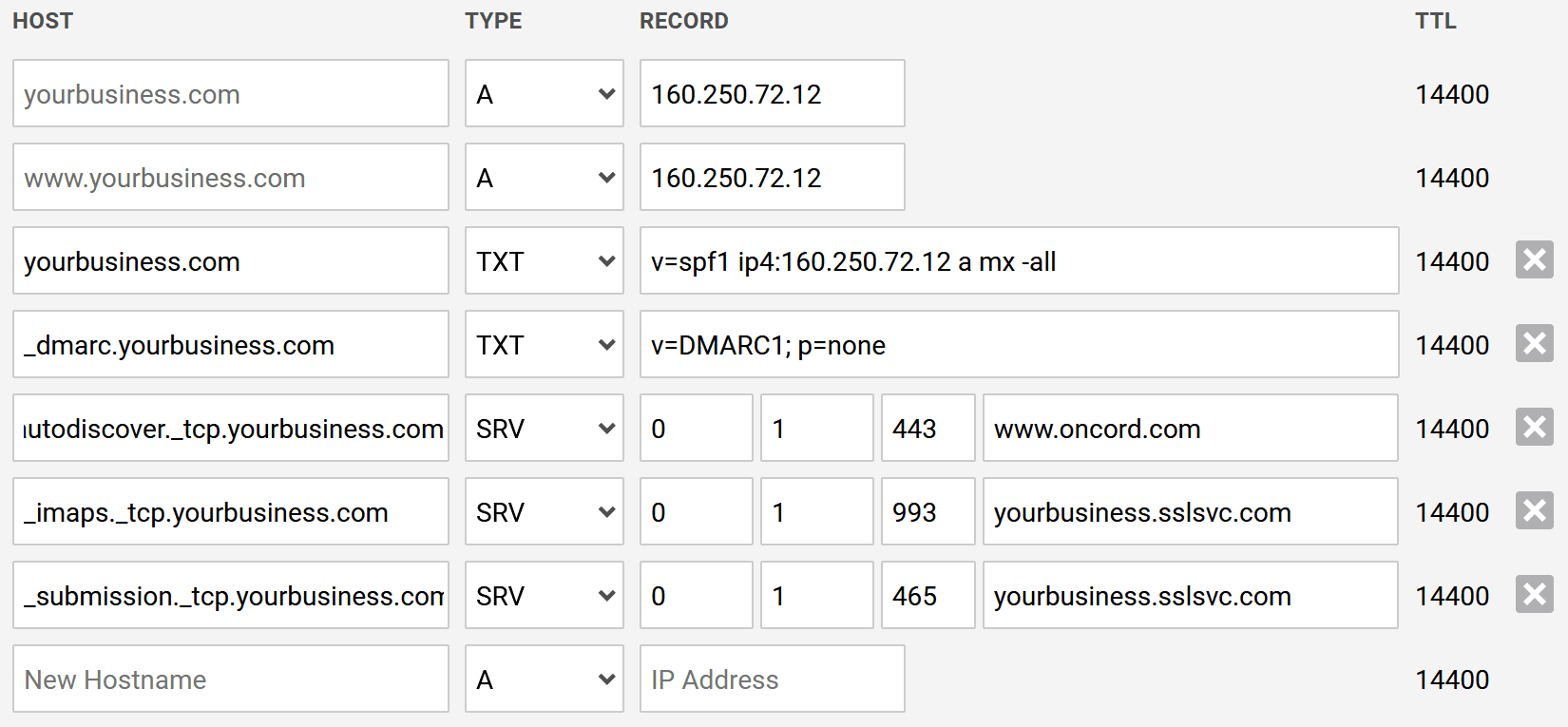
Each record is one row, with these columns:
- Host: The name the record applies to (for example, yourdomain.com or blog.yourdomain.com).
- Type: The kind of record. Oncord supports A, AAAA, CNAME, SRV, and TXT.
- Record: The value the host points to (an IP address, another hostname, or text).
- TTL: How long the record is cached, in seconds. TTL is set by Oncord and can't be changed here.
What each type is for:
- A: Points a host to an IPv4 address.
- AAAA: Points a host to an IPv6 address.
- CNAME: Points a host to another hostname (an alias). A host can have one CNAME or one A record, not both.
- SRV: Used by some services to advertise a server. SRV records have extra fields for priority, weight, port, and target.
- TXT: Holds text. Commonly used for SPF, DMARC, and domain-ownership verification.
Note: MX records (which direct incoming mail) aren't edited in this table. Set those under the E-mail Hosting section further down the page - see Choose where e-mail is delivered below.
Add a New DNS Record
- Scroll to the empty row at the bottom of the DNS Records table.
- Enter the Host name in the New Hostname field.
- Choose a Type from the dropdown.
- Enter the value in the Record field. For an SRV record, complete the priority, weight, port, and target fields instead.
- Click Save Configuration.
Edit an Existing DNS Record
- Locate the record in the table.
- Change the Host, Type, or Record value as needed.
- Click Save Configuration.
Tip: There should only ever be one SPF record (a TXT record beginning with v=spf1) for your domain. If you need to authorise an extra sender, edit the existing SPF record rather than adding a second one.
Delete a DNS Record
- Find the record in the table.
- Click the X button at the end of the row.
- Click Save Configuration.
Records without an X button are managed by Oncord and can't be removed.
Quick Setup Shortcuts

Above the table you'll find shortcuts that add a common set of records for you:
- Copy to Clipboard: Copies your current DNS records, useful when sharing them with an IT provider or another DNS host.
- Setup Microsoft 365: Sets up the DNS records to switch your e-mail hosting to Microsoft 365. For full steps, see Setting up Microsoft 365 e-mail hosting.
- Setup Gmail: Sets up the DNS records to switch your e-mail hosting to Gmail / Google Workspace. For full steps, see Setting up Gmail hosting.
Choose Where Email is Delivered
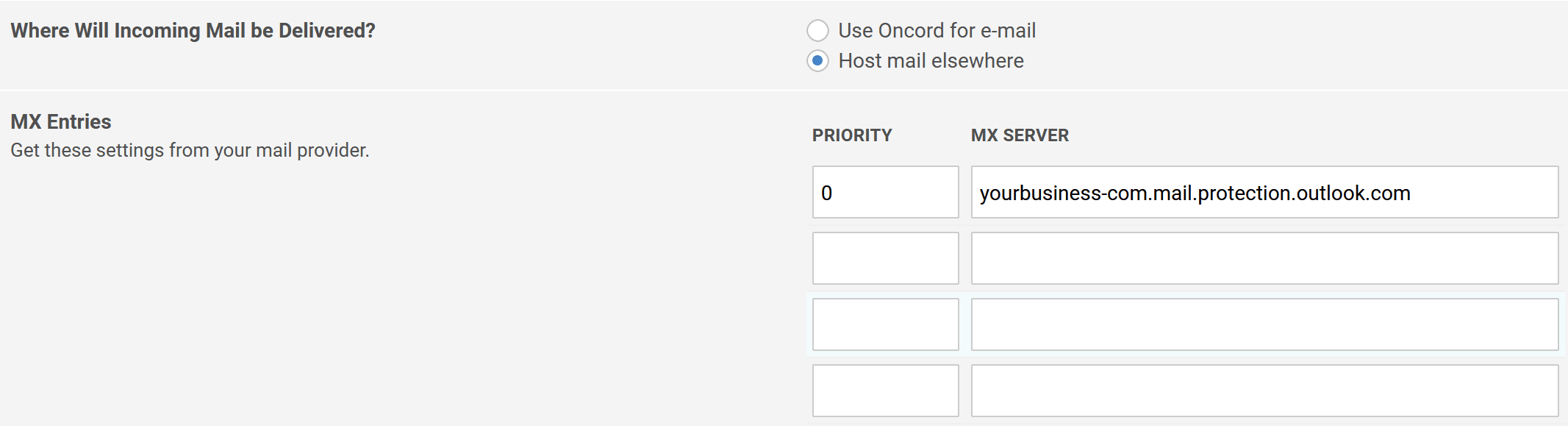
Under the E-mail Hosting heading, set Where Will Incoming Mail be Delivered?:
- Use Oncord for e-mail: Oncord configures the required mail records (including MX) for you. Choose this if you host your mailboxes with Oncord.
- Host mail elsewhere: Choose this if your mail is with another provider (for example, Gmail or Microsoft 365). An MX Entries section appears where you enter each mail server's Priority and MX Server, using the values from your mail provider.
Click Save Configuration when you're done. For full migration steps, see the relevant article under E-mail hosting.
Note: These MX settings apply to your whole domain, not to individual subdomains. Setting MX records for a subdomain is uncommon, but if a third-party service running on a subdomain needs to send mail, see Setting up sub domains.
Tips & Notes
- Editing an existing record or switching mail hosting usually takes up to a few hours to take effect. A brand-new domain, or a change to your name servers, can take 24–48 hours to resolve fully. Be patient when testing.
- When Oncord hosts your DNS, it manages the DKIM record for email sent through Oncord. If you also send through another provider, follow that provider’s instructions for its own authentication records.
- Editing the wrong record can interrupt your website or e-mail. If you're unsure about a change, it's a good idea to check with your IT support provider, or the provider who is requesting the change.
Troubleshooting
- My change hasn't taken effect. Allow time for propagation, then re-check. You can verify records with a tool such as MxToolbox.com.
- My changes don't seem to do anything. Confirm your domain points to Oncord's name servers. If your DNS is hosted externally, changes made within Oncord have no effect.
- E-mail stopped working after a change. Confirm your MX settings match the configuration specified by your e-mail provider, and check there's only one SPF record.
DNS Support Scope
Oncord provides DNS hosting, however our support for DNS records is limited.
For Oncord Business & Enterprise Users, we can:
- Show you where to add or update records within your DNS settings.
- Assist with DNS changes directly related to connecting or operating your Oncord website, e-mail, or other Oncord features.
We can't:
- Make DNS changes on your behalf (unless the change directly involves your Oncord service).
- Provide technical advice about DNS records for third-party services.
- Troubleshoot issues related to how DNS records interact with services outside of Oncord.
If you need help connecting to a third-party service, we recommend:
- Contacting the service provider directly.
- Searching community forums or documentation specific to that service.