
-
Website
-
3min Explainer Walkthrough

- Generate a Design
-
Page Management

-
Page Editing

-
Form Builder

- Updating Your Navigation Menu
- Creating Page Redirectors
- Posts Management
-
Search Engine Optimization (SEO)

- Setting Up Google Marketing Tools
- Setting Up Meta Pixel & E-commerce Tracking
- Setting Up Microsoft Marketing Tools
- Setting Up Reddit Pixel and E-commerce Tracking
- Setting Up Linkedin Insight Tag
- Optimizing Images For Web
-
Analytics

- Third Party Embed Code
- Special Files
- Setting Up OpenAI Ads Manager
-
3min Explainer Walkthrough
- Contacts
- Marketing
- Commerce
- Apps
- Settings and Config











Emailing a Contact and Saving Replies
You can send a one-to-one email to a contact directly from their profile in Oncord.
Saved Replies let you write a message once and reuse it later, so you do not need to retype the same email each time.
This article covers sending an email, saving it as a reusable reply, and loading a saved reply into a new message.
Before You Begin
- The contact needs an email address on their profile. Without one, you can still write and save a reply, but you cannot send it.
- Emails are sent by Oncord's mail server, using your own address as the sender.
- Your sending domain needs the DNS records supplied during your Oncord setup. Oncord shows a warning if the address you enter is not authorised.
Sending an Email to a Contact
- Go to Dashboard > Customers > Contacts.
- Open the contact you want to email.
- Click E-mail in the toolbar above the activity feed.
- Enter a Subject.
- Write your message in the Message editor.
- Add files under Attachments if needed.
- Leave Send e-mail selected.
- Check the To: and From: addresses.
- Click Send E-mail.
Oncord confirms with E-mail Sent Successfully, and the message is recorded in the contact's activity feed.
Changing the From Address
- Click the address shown next to From:.
- Enter the address you want to send from.
- Click outside the field.
Oncord remembers this address and uses it for your future emails. Each administrator has their own From address.
Recording an Email Without Sending It
Use this to log an email you sent or received outside Oncord.
- Select Record in Activity Feed only.
- Choose I sent this e-mail or I received this e-mail.
- Click Save.
Adding a CC Address
Oncord can CC the contact's secondary email address. There is no free text CC or BCC field.
- Open the contact's profile.
- Click Add secondary e-mail address.
- Enter the address, then save the contact.
- Open the E-mail window again.
- Tick CC this email to:, followed by the secondary address.
Saving an Email as a Saved Reply
Saved Replies work as reusable email templates. Write the message once, save it with a title, then load it whenever you need it. Attachments are saved with the reply.
Saving a Reply as You Send
- Write the subject and message.
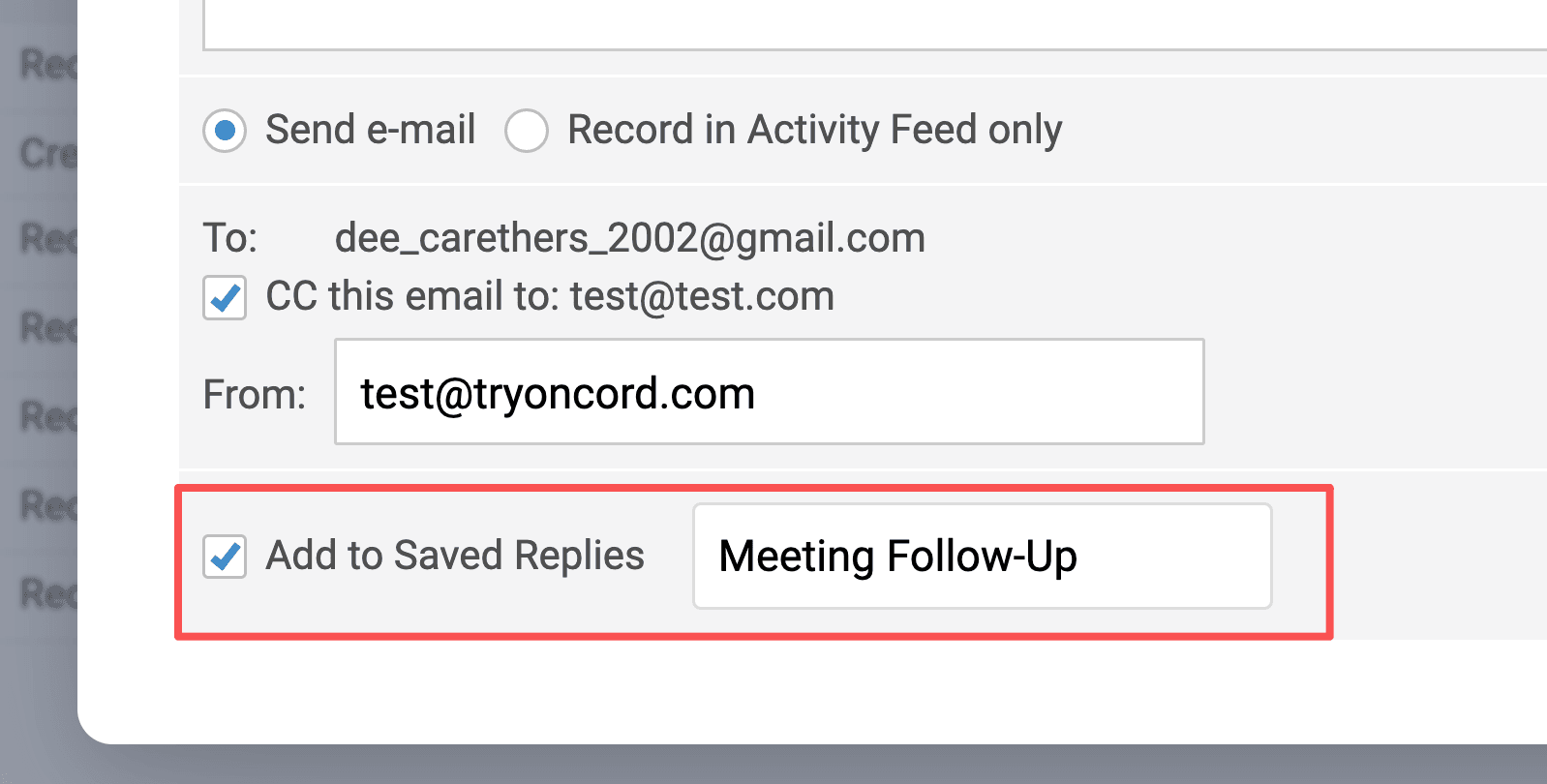
- Tick Add to Saved Replies next to the send button.
- Enter a title for the reply.
- Click Send E-mail.
A title is required. Oncord shows Please enter a title for the saved reply if the field is left empty.
Saving a Reply Without Sending
- Write the subject and message.
- Click Add to Saved Replies at the bottom of the Saved Replies panel.
- Enter a title.
- Click the save icon next to the title field.
Using a Saved Reply
- Open the contact you want to email.
- Click E-mail.
- Find the reply in the Saved Replies panel, or search for it in Search replies....
- Click the reply title.
- Click OK to confirm. Loading a reply clears anything already written in the form.
- Edit the subject, message, or attachments as needed.
- Click Send E-mail.
Search matches both the reply title and the subject line.
Updating or Deleting a Saved Reply
To update a reply:
- Load the reply into the email window.
- Make your changes.
- Save it again using the same title.
Saving with an existing title replaces that reply. To keep both versions, use a different title.
To delete a reply:
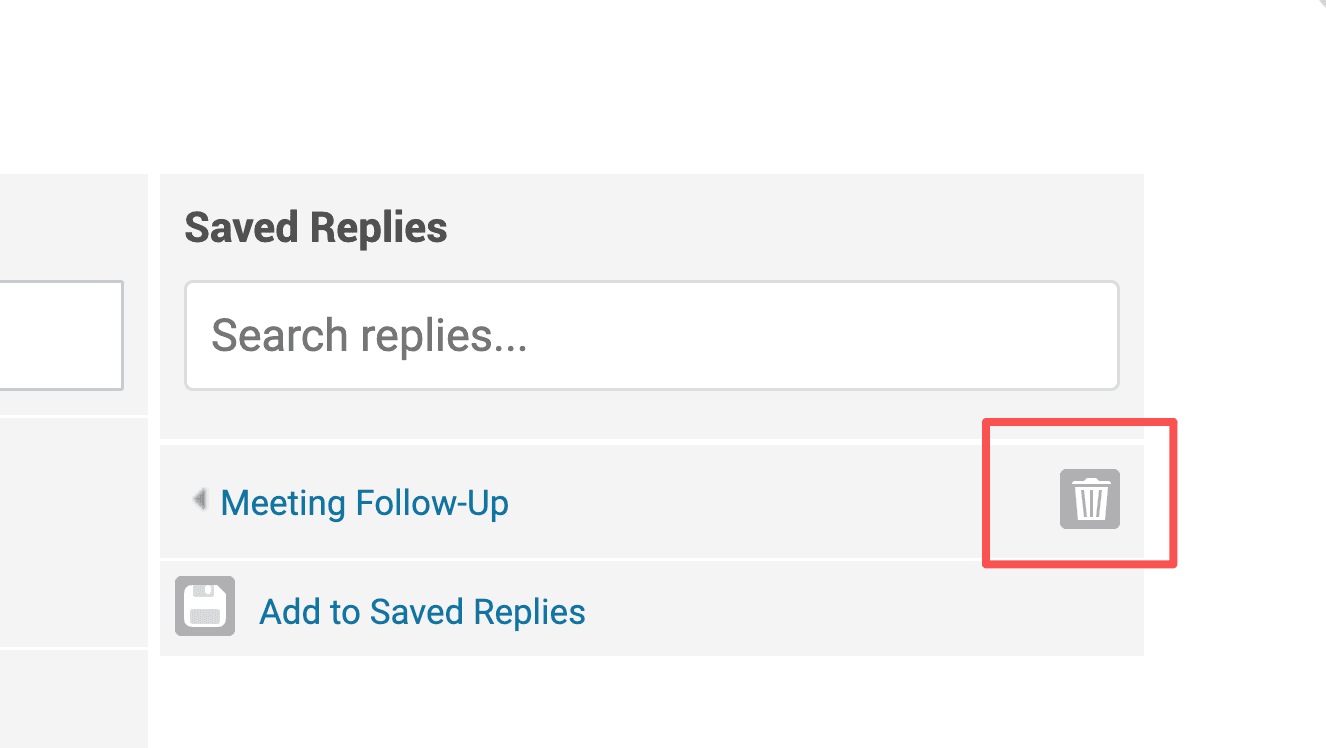
- Click the delete icon next to the reply title.
- Click OK to confirm.
Adding Personalisation Fields
New messages open with Dear [First Name],. This is a personalisation field, and Oncord replaces it with the contact's first name when the email is sent. Personalisation fields are stored with the reply, so a saved template stays personalised for every contact you send it to.
To add a personalisation field elsewhere in your message:
- Click Insert in the editor toolbar.
- Open the Dynamic group.
- Drag First Name into your message.