
-
Website
-
3min Explainer Walkthrough

- Generate a Design
-
Page Management

-
Page Editing

-
Form Builder

- Updating Your Navigation Menu
- Creating Page Redirectors
- Posts Management
-
Search Engine Optimization (SEO)

- Setting Up Google Marketing Tools
- Setting Up Meta Pixel And E-commerce Tracking
- Setting Up Microsoft Marketing Tools
- Setting Up Reddit Pixel and E-commerce Tracking
- Setting Up Linkedin Insight Tag
- Optimizing Images For Web
-
Analytics

- Third Party Embed Code
- Special Files
- Setting Up OpenAI Ads Manager
-
3min Explainer Walkthrough
- Contacts
- Marketing
- Commerce
- Apps
- Settings and Config











Webhooks
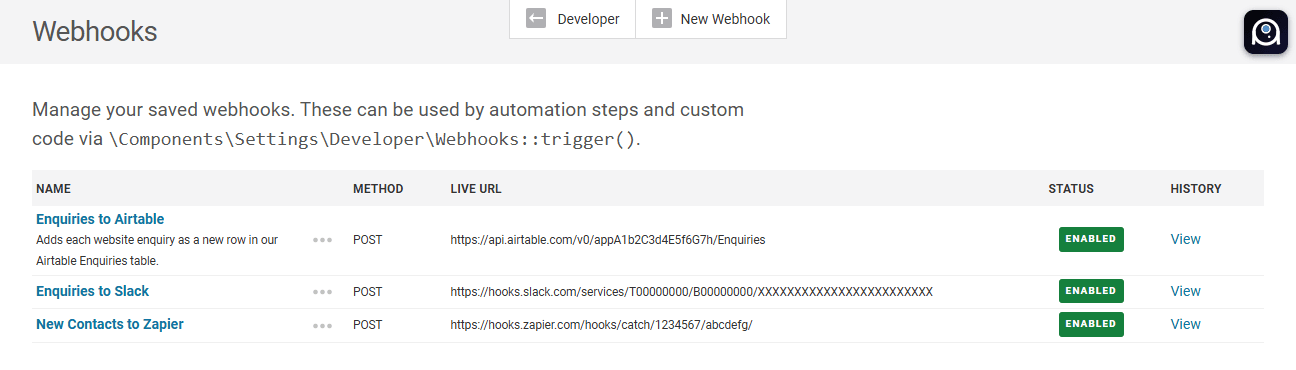
A webhook lets Oncord send information to another service the moment something happens on your website. For example, when someone submits your enquiry form, Oncord can post a message in Slack, add a row to an Airtable table, or start a Zap in Zapier.
Webhooks are useful when you want to:
- Get a chat message in Slack, Microsoft Teams, Google Chat, Discord or Telegram when a form is submitted or a sale is made.
- Copy new contacts or enquiries into another system, such as Notion or Airtable.
- Connect Oncord to hundreds of other apps through Zapier or Make.com.
- Send data to your own systems, or to a developer's API.
Note: Webhooks are currently in Beta. Oncord webhooks are outgoing only: Oncord sends data to other services. Other services can't use a webhook to send data into Oncord.
How Webhooks Work
There are two parts to a webhook in Oncord:
- The webhook itself. This is where the data goes (the URL) and what is sent (the payload fields). You set it up once in Dashboard > Settings > Developer > Webhooks.
- An automation. This decides when the webhook is sent, and fills in the values for each field. You add a Trigger Webhook step to any automation.
You can use the same webhook in as many automations as you like.
Create a Webhook
- Navigate to Dashboard > Settings, then click Developer.
- Click Webhooks.
- Click New Webhook at the top of the page.
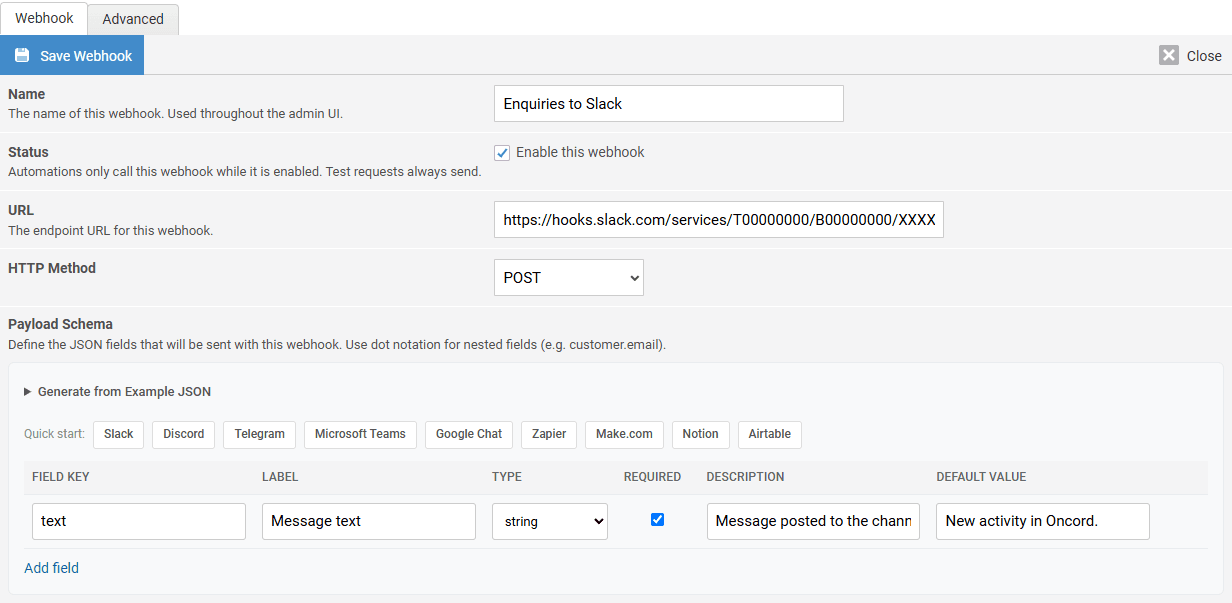
- In Name, enter a name you'll recognise later. For example, Enquiries to Slack.
- In URL, paste the webhook URL from the other service.
- Choose the HTTP Method. Most services use POST, which is the default.
- Make sure Enable this webhook is ticked.
- Set up the Payload Schema (see below), then click Save Webhook.
Note: The URL must start with http:// or https://. For security, it can't point to a private or internal network address.
Turn a Webhook On or Off
Untick Enable this webhook to pause a webhook without deleting it. Automations skip a disabled webhook. Test requests still send, so you can keep testing while it's paused. The Status column in the Webhooks list shows Enabled or Disabled.
Choose What to Send: the Payload Schema
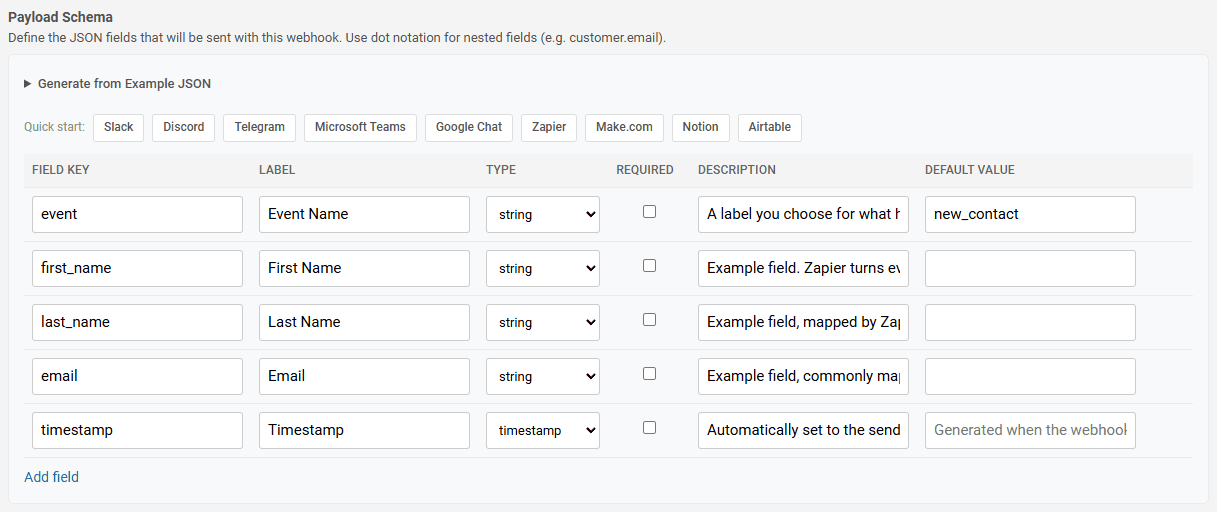
The payload is the information the webhook sends. The Payload Schema is the list of fields in that payload. Each field has:
- Field Key: the name the other service expects, such as text or email. Use letters, numbers and underscores.
- Label and Description: help text that shows in your automations, so you know what to put in each field.
- Type: the kind of value (see the table below).
- Default Value: used when the automation leaves the field blank.
Click Add field to add a field, or the ✕ to remove one.
| Type | Use it for |
| string | Text, such as a name, email address or message. |
| number | Whole numbers or decimals, such as a quantity or price. |
| boolean | Yes / no values. 1, true, yes and on are sent as true. Anything else is sent as false. |
| object | A block of JSON, for advanced use. |
| timestamp | The date and time the webhook is sent. Oncord fills this in for you (in UTC), so you don't enter a value. |
Tip: Some services expect fields inside other fields. Use a dot in the field key to do this. For example, the key customer.email
sends an email field inside a customer field.
Quick Start Presets
You don't need to know what fields a service expects. Click one of the Quick start buttons above the Payload Schema to fill in the fields for you:
- Slack
- Discord
- Telegram
- Microsoft Teams
- Google Chat
- Zapier
- Make.com
- Notion
- Airtable
A preset replaces any fields you already have, so Oncord asks you to confirm first. After it loads, Oncord shows a short note about how to set up that service. Read it, as some services need an extra step, such as an access token.
Tip: If you paste a Slack, Discord, Telegram, Google Chat, Zapier, Make.com, Notion or Airtable URL into a webhook that has no fields yet, Oncord recognises it and loads the matching preset automatically.
[VIDEO PLACEHOLDER] Pasting a Slack webhook URL, and the Slack preset filling in automatically.
Generate Fields from Example JSON
If the other service gives you an example of the data it expects (often in its documentation), you can turn it straight into fields:
- Click Generate from Example JSON.
- Paste the example.
- Click Generate Fields.
This replaces your current fields. Fields inside other fields are converted to dot keys for you.
Headers, Passwords and Tokens
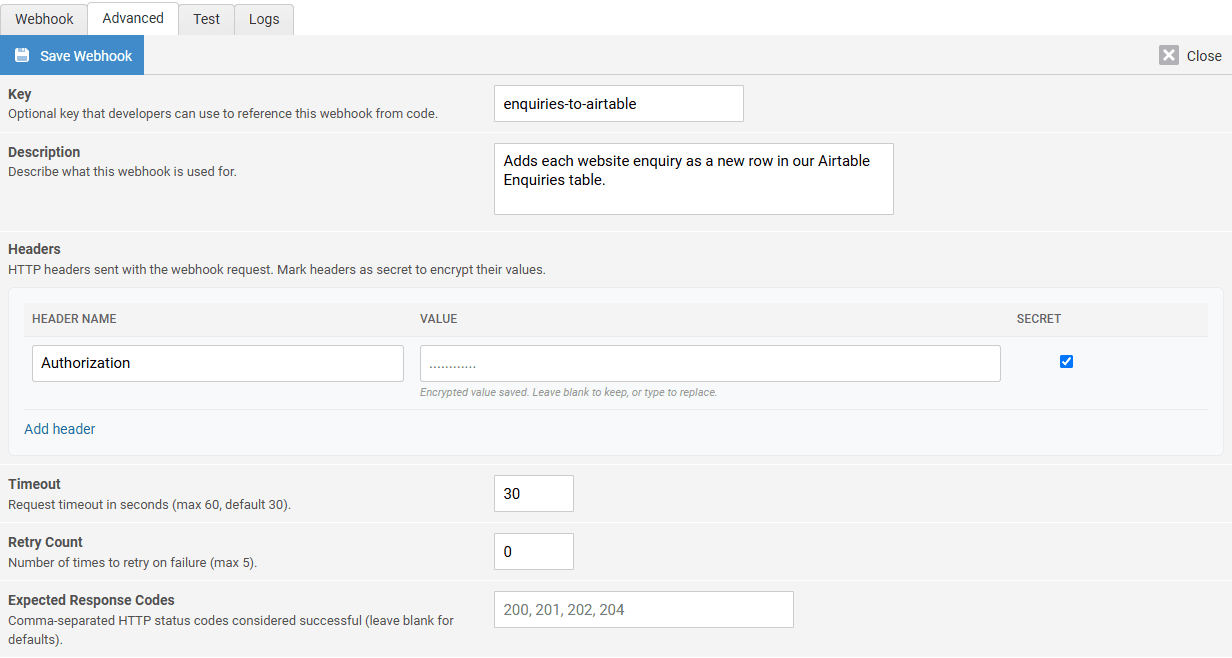
Some services need a password, API key or access token before they accept your data. This is usually sent in a header, most often one called Authorization.
- Open the Advanced tab.
- Under Headers, click Add header.
- Enter the Header Name (for example, Authorization) and the Value the service gave you.
- Tick Secret for any password, key or token.
- Click Save Webhook.
Secret values are encrypted, and are never shown again after you save. Leave the box blank to keep the saved value, or type a new value to replace it. Secret values are also hidden in the webhook log.
Note: Some services, like Slack, Discord, Google Chat and Telegram, put the secret inside the URL instead. Treat those URLs like a password, and don't share them.
Other Advanced Settings
- Description: a note about what the webhook is for.
- Timeout: how many seconds Oncord waits for the other service to reply. The default is 30, and the maximum is 60.
- Retry Count: how many more times Oncord tries if the request fails. The default is 0, and the maximum is 5. Oncord waits a little longer between each try.
- Expected Response Codes: the replies that count as a success. Leave it blank to use the usual success codes (200, 201, 202 and 204).
- Key: a short code name for developers (see For Developers, below).
Test Your Webhook
Always test a webhook before you use it in an automation.
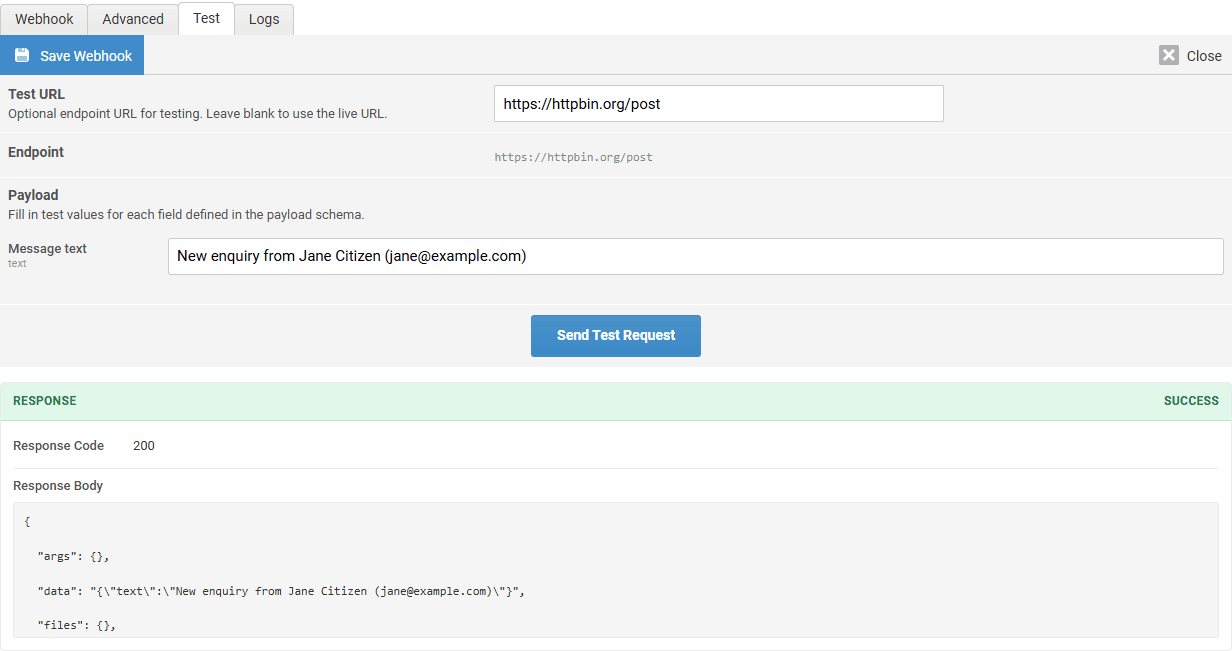
- Save the webhook. The Test tab appears after the first save.
- Open the Test tab.
- Under Payload, enter a test value for each field. Fields you leave blank use their default value.
- Click Send Test Request.
Oncord shows the Response: Success or Failed, the response code, and the start of the reply from the other service. Then check the other service (for example, your Slack channel) to make sure the data arrived.
Use a Separate Test URL
Some services give you a separate address for testing. Enter it in Test URL on the Test tab, then click Save Webhook. Test requests then go to the test URL instead of the live one. Leave it blank to send tests to the live URL.
Note: You can send up to 10 test requests per minute for each webhook.
Send a Webhook from an Automation
Once your webhook works, add it to an automation. The automation decides when the webhook is sent, and what goes in each field.
- Navigate to Dashboard > Marketing > Automation.
- Open an automation, or create a new one.
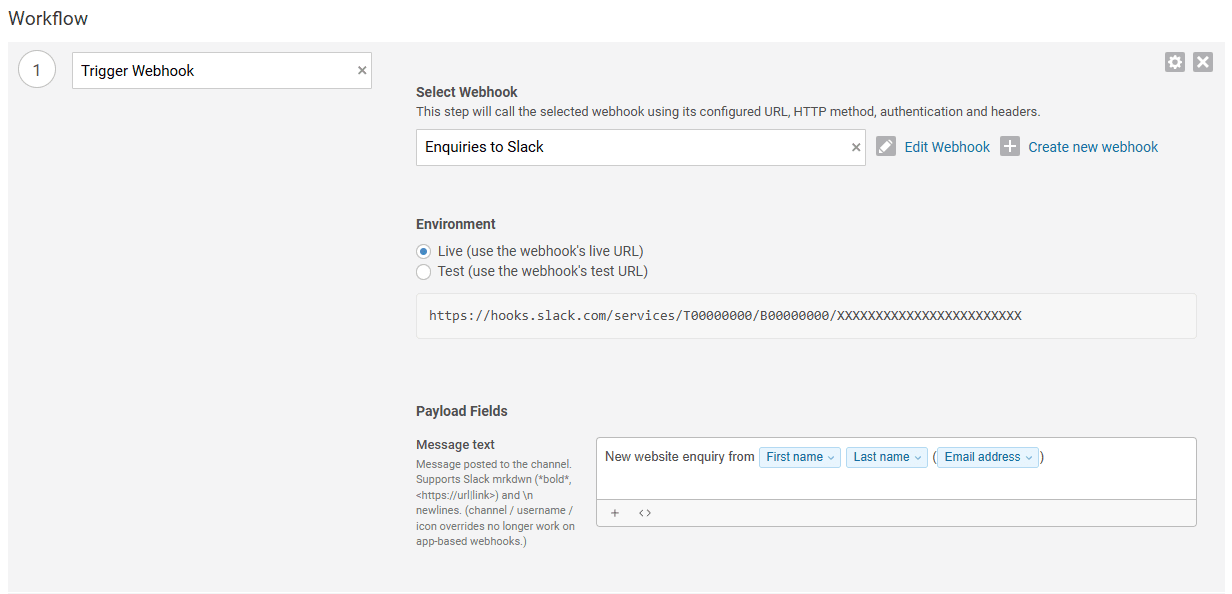
- Add a step, and choose Trigger Webhook.
- In Select Webhook, choose your webhook.
- Fill in the Payload Fields (see below).
- Save the automation.
Tip: Click Create new webhook to create a webhook without leaving the automation. Click Edit Webhook to change the selected one.
For more about automations, see Creating and Managing Automations.
Fill In the Payload Fields
The step shows one box for each field in the webhook's Payload Schema. You can type fixed text, insert variables, or both. A variable is a placeholder that Oncord replaces with real information when the step runs, such as the contact's first name or the details of a form submission.
- Click the + button under the field, or type [? in the field.
- Search for the variable you want, then click it.
- The variable shows as a coloured tag in the field. You can type text before and after it.
The variables you can choose depend on the automation's trigger. Trigger Variables come from the event that started the automation (for example, the form submission). Contact Fields come from the contact the automation is running for.
If you leave a field blank, the field's default value is sent.
[VIDEO PLACEHOLDER] Inserting a variable into a payload field with the variable picker.
Note: If you change the automation's trigger, some variables may no longer be available. Oncord marks them with a warning (⚠). Replace them before you save.
Live or Test
If the webhook has a Test URL, the step also shows an Environment option. Choose Live to use the webhook's live URL, or Test to use its test URL. Check that Live is selected before you turn the automation on.
If a Webhook Fails
If the other service doesn't reply with a success, the step is marked as failed, and the automation continues to its next step. You can see what happened in the webhook log (see below).
Example: Post Form Enquiries to Slack
This example posts a message to a Slack channel each time someone submits a form on your website.
- In Slack, create an Incoming Webhook for your channel, and copy its URL.
- In Oncord, create a new webhook. Name it Enquiries to Slack, and paste the Slack URL into URL. The Slack preset loads automatically, with one field: Message text.
- Click Save Webhook, then send a test from the Test tab.
- Create an automation. For Upon Event, choose Forms - When a form is submitted, and choose your form.
- Add a Trigger Webhook step, and select Enquiries to Slack.
- In Message text, type New enquiry from and insert the contact's first name and email variables.
- Save the automation, then submit the form to try it.
View the Webhook Log
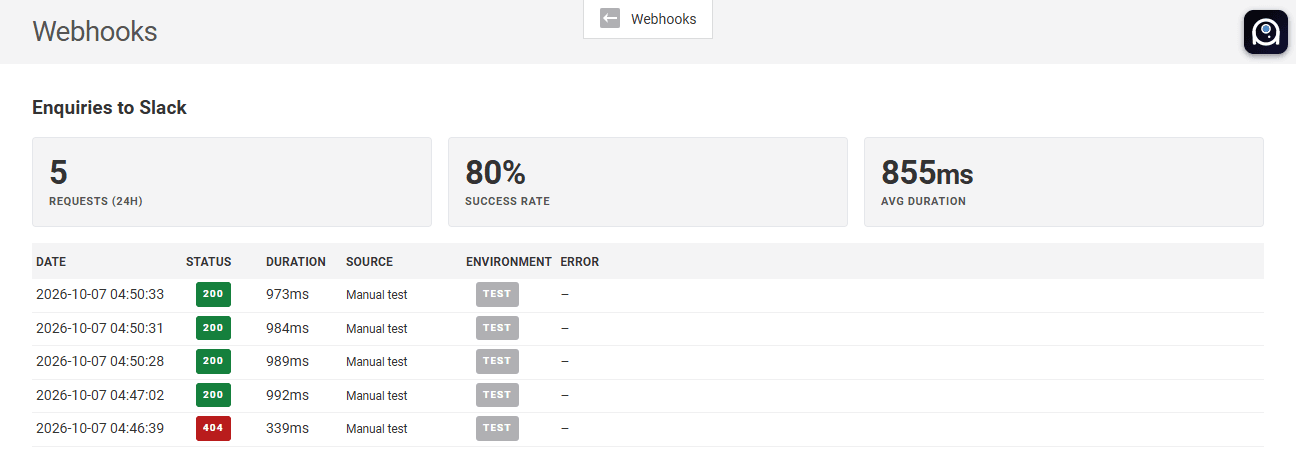
Oncord keeps a log of every request a webhook sends. To see it:
- Open the webhook and click the Logs tab.
- Or, in the Webhooks list, click View in the History column.
The log shows the number of requests in the last 24 hours, the success rate and the average time taken. Below that, each request shows the date, status, time taken, where it came from (Automation, Manual test or Api), whether it was Live or Test, and any error.
Logs are kept for 30 days.
Troubleshooting
| Problem | What to check |
| "URL must not target a private or internal address" | The URL points to a private network. Use the service's public web address. |
| "Could not resolve hostname" | Check the URL for typos. |
| The automation step says the webhook is disabled | Edit the webhook, tick Enable this webhook, and save. |
| Client error (4xx) | The service rejected the request. Check your password, key or token on the Advanced tab, and check that your field keys match what the service expects. |
| Server error (5xx) | The other service had a problem. Try again later, or add a Retry Count. |
| Unexpected response (3xx) | The URL redirects somewhere else. Oncord doesn't follow redirects, so use the final URL instead. |
| The request times out | The service is slow to reply. Increase the Timeout (up to 60 seconds). |
| The service accepts the request, but a value is missing | Check that the variable in that field has a value for the contact. Blank values fall back to the field's default value. |
For Developers
Each webhook can have a Key on the Advanced tab. Oncord fills it in from the webhook's name, and keys must be unique. Custom PHP code can use the key to send the webhook:
\Components\Settings\Developer\Webhooks::trigger('enquiries-to-slack', ['text' => 'Hello from Oncord']);
Requests sent from code show as Api in the webhook log. Use triggerOrThrow() instead if you want an error
when the request fails.
Delete a Webhook
- Navigate to Dashboard > Settings > Developer > Webhooks.
- Click the three dots next to the webhook, then click Delete.
- Oncord lists any automations that use the webhook. Check the list, then click Confirm Delete.
Note: Deleting a webhook also deletes its log. Any automation step that used it will fail when it's reached. To pause a webhook instead, untick Enable this webhook.