
-
Website
-
3min Explainer Walkthrough

- Generate a Design
-
Page Management

-
Page Editing

-
Form Builder

- Updating Your Navigation Menu
- Creating Page Redirectors
- Posts Management
-
Search Engine Optimization (SEO)

- Setting Up Google Marketing Tools
- Setting Up Meta Pixel & E-commerce Tracking
- Setting Up Microsoft Marketing Tools
- Setting Up Reddit Pixel and E-commerce Tracking
- Setting Up Linkedin Insight Tag
- Optimizing Images For Web
-
Analytics

- Third Party Embed Code
- Special Files
-
3min Explainer Walkthrough
- Contacts
- Marketing
- Commerce
- Apps
- Settings and Config











Filtering Recurring Sales
Similar to Filtering Products, you can apply custom filters to recurring sales data to help you find specific subscriptions, payment plans, or recurring orders.
The following example demonstrates how to retrieve active recurring sales that contain a specific product and have their next billing date within a selected date range.
To get started:
- Navigate to Dashboard > Commerce > Recurring Sales to access your recurring sales data.
- Click Custom Filter at the top of the table to open the filter conditions.
- Select Contains Product from the list of conditions.
- Choose the product you want to filter by.
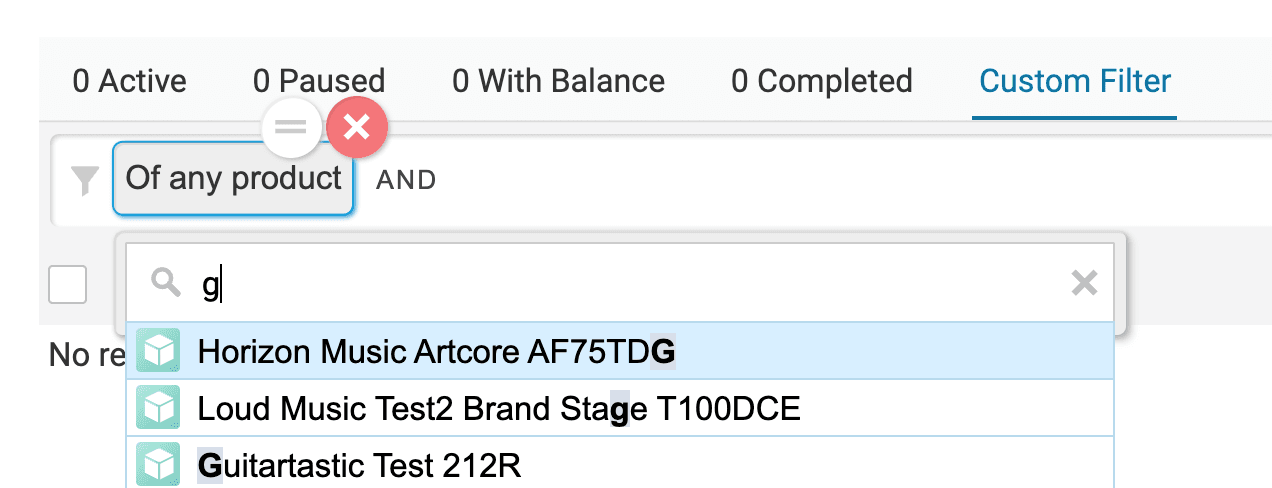
- Click the empty field on the right to add another condition.
- Select Next Billing between Dates.
- Choose the date range you want to check.
.png)
You can also filter recurring sales by conditions such as:
- Billing Frequency: Find recurring sales by how often they are billed, such as weekly, monthly, or annually.
- Contains Product in Category: Find recurring sales that include products from a selected product category.
- Contains Product under Brand: Find recurring sales that include products from a selected brand.
- Created between Dates: Find recurring sales created within a selected date range.
- Filter by Field: Filter recurring sales by an available field and value.
- Has Multiple: Find recurring sales where the associated contact has more than one recurring sale.
- Sold to Contact: Find recurring sales sold to a specific contact.
- Total between Amounts: Find recurring sales with a total amount within a selected range.
You can then take actions on the filtered recurring sales, such as:
- Edit the selected recurring sale.
- Pause the selected recurring sale.
- Resume a paused recurring sale.
- Terminate the selected recurring sale.
- Export the selected recurring sales data to a CSV file.