
-
Website
-
3min Explainer Walkthrough

- Generate a Design
-
Page Management

-
Page Editing

-
Form Builder

- Updating Your Navigation Menu
- Creating Page Redirectors
- Posts Management
-
Search Engine Optimization

- Setting Up Google Marketing Tools
- Setting Up Meta Pixel & E-commerce Tracking
- Setting Up Microsoft Marketing Tools
- Setting Up Linkedin Insight Tag
- Optimizing Images For Web
-
Analytics

- Third Party Embed Code
- Special Files
-
3min Explainer Walkthrough
- Contacts
- Marketing
- Commerce
- Apps
-
Settings and Config
- Going Live
- Billing
- Domain Health Checker
- Managing Administrators
- Registering a Domain Name
- Changing Your Domain Name
- The Role of DNS Records Explained
- Backing Up Your Website
- Choosing an E-mail Host
- Hosting Email With Oncord
- Setting Up Gmail Hosting
- Setting Up Microsoft 365 E-mail Hosting
- Setting Up Sub Domains
- Hosting a Sub-Site
- Changes











Merging Duplicate Contacts
When new contact records are created, Oncord will automatically merge with existing contacts, but only when it is safe to do so:
- Automatic merges must not overwrite data. The new contact must have the same information entered as an existing record.
- Automatic merges must be secure. The merge must not compromise the security of accounts by overwriting passwords or other sensitive information, granting access to data that the user did not enter.
There are many situations where you may end up with duplicate contact records such as:
- The import of data from a CSV file (note merge options are presented during the import process);
- The import of data from connected third party applications; and
- Customers re-registering accounts.
Companies
Contacts in Oncord can either be of type 'Individual' or 'Company'. An Individual is a person, and a Company is a non-person (such as a company, business or trust).
When importing data from third party systems, Individual contacts are often linked with Company records via their relationships (such as an Employee relationship).
Sometimes both Individuals and Companies can have the same e-mail address. This is fine. While it may initially feel like your database is 'full of duplicates', it is a good thing to have both company and individual records in Oncord.
Duplicate E-mails and Marketing
When sending an e-mail marketing message, Oncord builds a 'list of recipients' to send to for the chosen filter conditions. When building this list, Oncord will remove any contacts with duplicate e-mail addresses from the list of recipients. So when you have two contact records with the same e-mail address, that address will only receive one message.
When sending and Oncord filters out duplicates, the chosen contact record will be determined as follows:
- Individuals are always chosen over Company records. This allows messages to be personalised with first and last names.
- The oldest contact record will be chosen. This is because it normally contains more profile information than a newer duplicate record.
When an e-mail address is 'unsubscribed', all other contact records with the same e-mail address will also become unsubscribed.
The above rules also apply for SMS marketing, but is based on the user's mobile number.
Find Duplicates Tool
Oncord includes a tool to help locate duplicate contact records.
- Go to Customers > Contacts.
- Select the "Find Duplicates" button from the menu located at the top of the page.
This tool allows you to see:
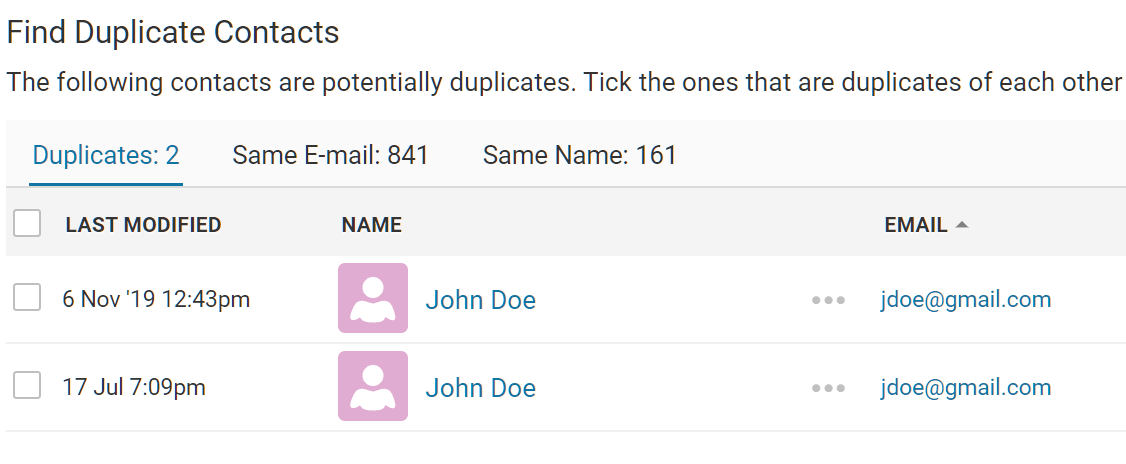
Merge Tool
Once you have identified two or more duplicate records, tick them on the left, then click Merge.
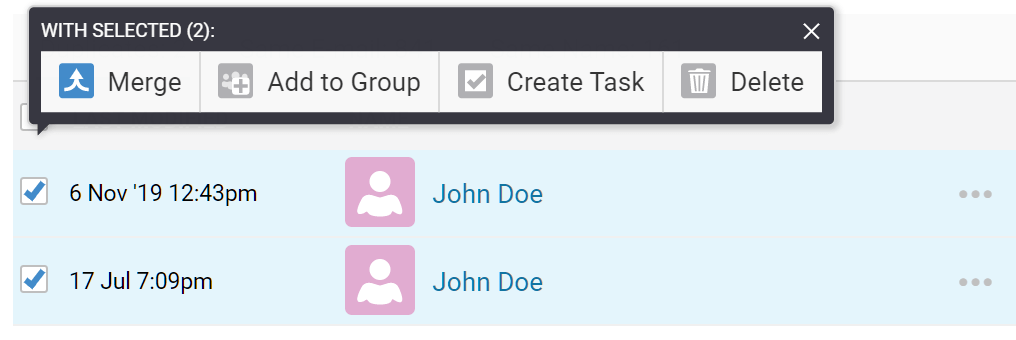
A three-step process is then presented:
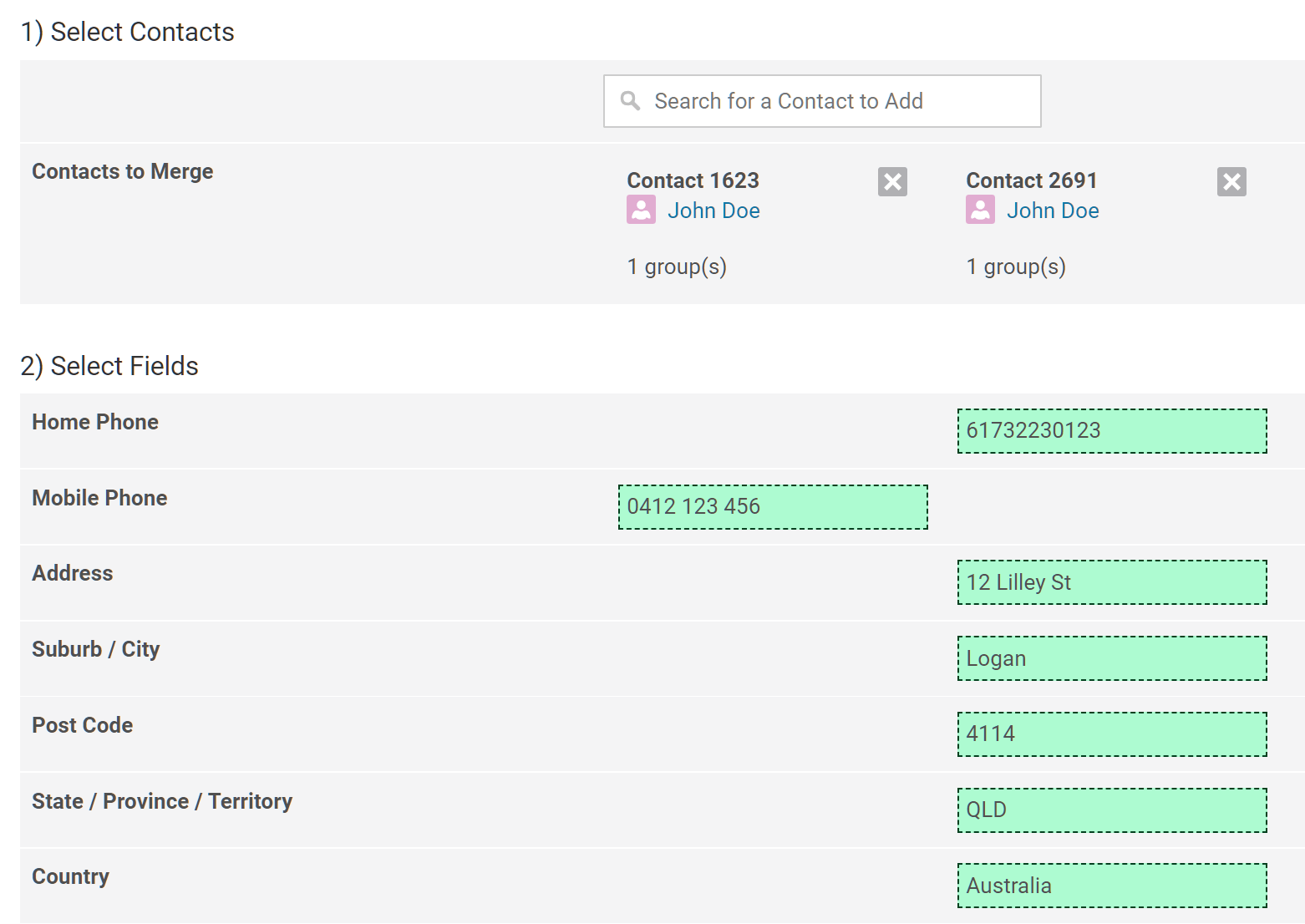
You can then merge the contacts. All groups and history in the contact's Activity Feed will be merged.
Auto Merge
Oncord also has an "Auto Merge" tool which can be found on the top right of the "Duplicates" tab.
This tool will merge all of the contacts in the first Duplicates tab, using the default fields during the use of the Merge Tool above. It
is an automated process equivalent to running the Merge Tool on each set of duplicates without manipulating the result.