
-
Website
-
3min Explainer Walkthrough

- Generate a Design
-
Page Management

-
Page Editing

-
Form Builder

- Updating Your Navigation Menu
- Creating Page Redirectors
- Posts Management
-
Search Engine Optimization

- Setting Up Google Marketing Tools
- Setting Up Meta Pixel & E-commerce Tracking
- Setting Up Microsoft Marketing Tools
- Setting Up Linkedin Insight Tag
- Optimizing Images For Web
-
Analytics

- Third Party Embed Code
- Special Files
-
3min Explainer Walkthrough
- Contacts
- Marketing
- Commerce
- Apps
-
Settings and Config
- Going Live
- Billing
- Domain Health Checker
- Managing Administrators
- Registering a Domain Name
- Changing Your Domain Name
- The Role of DNS Records Explained
- Backing Up Your Website
- Choosing an E-mail Host
- Hosting Email With Oncord
- Setting Up Gmail Hosting
- Setting Up Microsoft 365 E-mail Hosting
- Setting Up Sub Domains
- Hosting a Sub-Site
- Changes











Setting Tasks
What is an Oncord Task?
An Oncord task is a reminder linked to a contact record. Tasks are commonly used to prompt follow-up actions, such as calling a contact, reviewing a submission, or checking in after a sale.
You create tasks on contact records and set a due date for when you want to be reminded. Upcoming and overdue tasks appear on the Dashboard when you log in. You can also receive an email reminder if one is set.
Tasks are assigned to the administrator who creates them, but they can be reassigned to another administrator if needed.
Note:
Only the assigned administrator will see upcoming tasks. When a task becomes overdue, it will appear for all administrators on the Dashboard.
Create a Task
The easiest way to create a task is from a contact profile.
- Go to Dashboard > Customers > Contacts.
- Select a contact record.
- Click New Task above the activity feed.
- Enter a Task title.
- Enter a Description (optional).
- Set the Due date.
- Select an Administrator if you want to assign the task to someone else.
- Configure an Email reminder if required.
- Click Create Task.
You can also choose a Saved Task
to load a predefined task template.
Note: Saved Tasks were previously called Canned Tasks.
The task title and description appear throughout the Dashboard and in reminder emails.
Create Saved Task
Saved tasks allow you to reuse common task setups.
To create a Saved Task:
- Create a task.
- Click Save as Saved Task on the right side of the form.
- Enter a Saved Task name (this defaults to the task title).
- Click Save.
The saved task will appear in the Saved Tasks section when creating future tasks.
Saved tasks can also be used in Automation workflows.
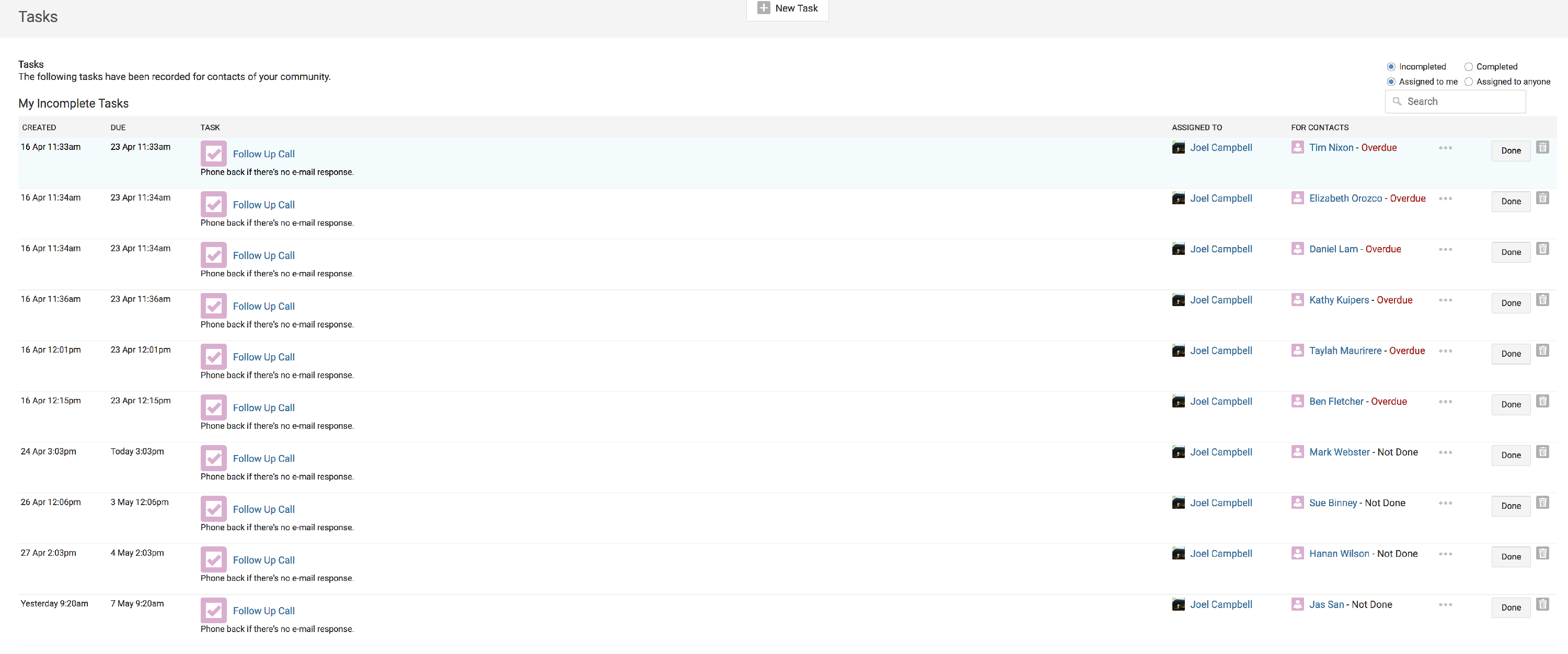
View all Tasks
To view tasks across all contacts and administrators:
- Go to Dashboard > Customers > Contacts.
- Click Tasks at the top of the page.
This page displays all upcoming and overdue tasks.