-
Website
-
3min Explainer Walkthrough

- Generate a Design
-
Page Management

-
Page Editing

-
Form Builder

- Updating Your Navigation Menu
- Creating Page Redirectors
- Posts Management
-
Search Engine Optimization (SEO)

- Setting Up Google Marketing Tools
- Setting Up Meta Pixel & E-commerce Tracking
- Setting Up Microsoft Marketing Tools
- Setting Up Reddit Pixel and E-commerce Tracking
- Setting Up Linkedin Insight Tag
- Optimizing Images For Web
-
Analytics

- Third Party Embed Code
- Special Files
- Setting Up OpenAI Ads Manager
-
3min Explainer Walkthrough
- Contacts
- Marketing
- Commerce
- Apps
- Settings and Config











- Website
-
-
3min Explainer Walkthrough
- Generate a Design
-
Page Management
-
Page Editing
-
Form Builder
- Updating Your Navigation Menu
- Creating Page Redirectors
- Posts Management
-
Search Engine Optimization (SEO)
- Setting Up Google Marketing Tools
- Setting Up Meta Pixel & E-commerce Tracking
- Setting Up Microsoft Marketing Tools
- Setting Up Reddit Pixel and E-commerce Tracking
- Setting Up Linkedin Insight Tag
- Optimizing Images For Web
-
Analytics
- Third Party Embed Code
- Special Files
- Setting Up OpenAI Ads Manager
-
3min Explainer Walkthrough
- Contacts
- Marketing
- Commerce
- Apps
- Settings and Config
Checking Your Meta Pixel with Meta Ads Data Advisor
Meta Ads Data Advisor (formerly Meta Pixel Helper) is a free Chrome extension from Meta that checks web pages for Meta Pixel code. You can use it to confirm that the Meta Pixel on your Oncord website is installed and sending events. This article covers installing the extension and using it to check your pixel.
Before You Begin
- You need the Google Chrome web browser.
- The Meta Pixel should already be installed on your website.
- You don't need to sign in to Facebook or Meta to check your pixel.
Install Meta Ads Data Advisor
- Open Meta Ads Data Advisor in the Chrome Web Store.
- Click Add to Chrome.
- Review the permissions.
- Click Add extension.
- Click the Extensions icon next to the address bar.
- Reload any pages you already had open, so the extension can check them.
If You Already Have Meta Pixel Helper
Meta Pixel Helper updates to Meta Ads Data Advisor automatically, so you don't need to install it again. If the extension has been turned off since the update:
- Enter chrome://extensions in the Chrome address bar.
- Turn on the switch for Meta Ads Data Advisor.
- Review and accept the updated permissions.
- Click Add extension.
Check Your Meta Pixel
- Open your website in Chrome.
- If you use an ad blocker, disable it for your website. Ad blockers can stop the extension from detecting your pixel.
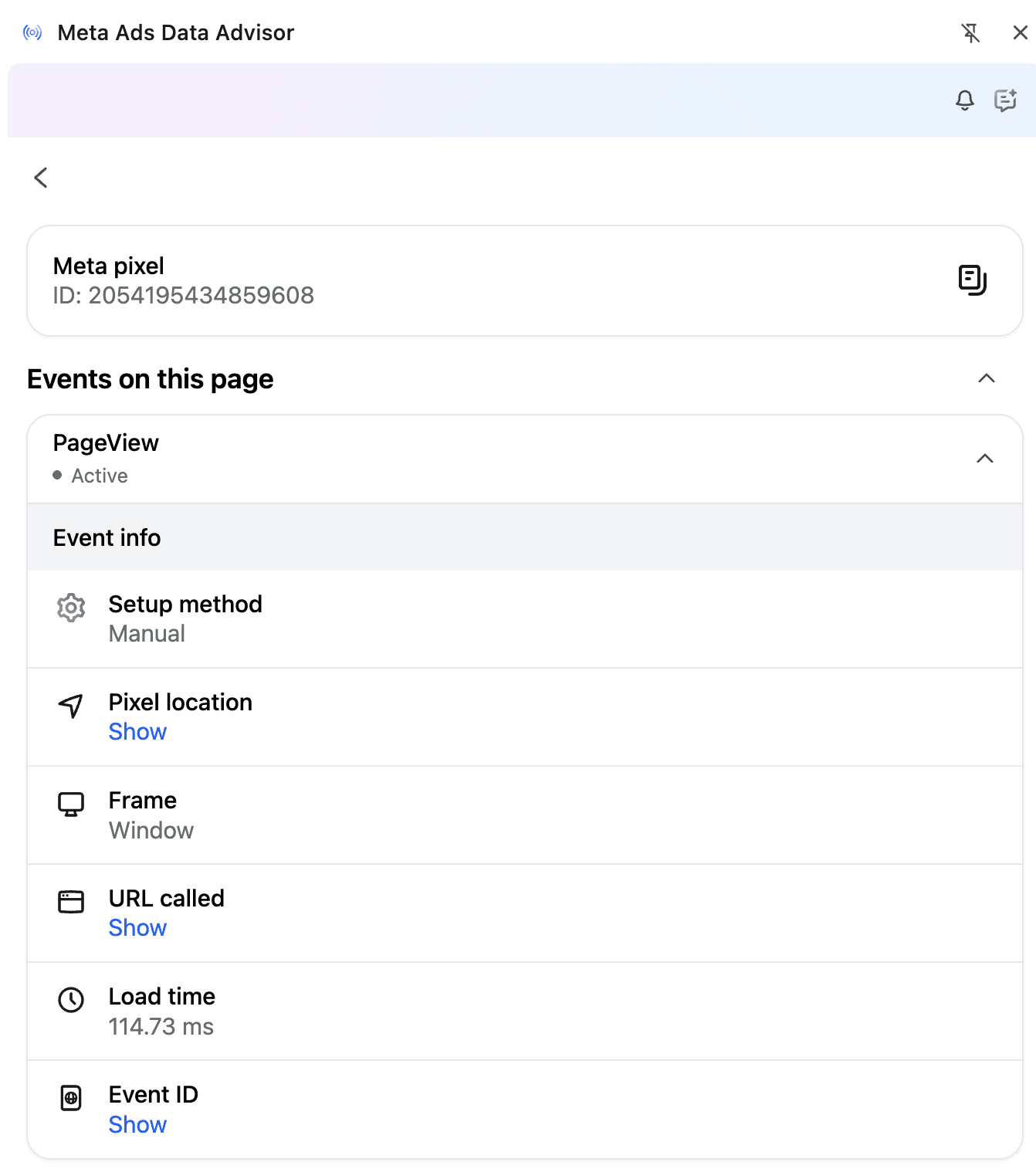
- Click the Meta Ads Data Advisor icon. A side panel opens.
- Check that your pixel is listed and shows as Active.
- Click the pixel to see each event it sent, such as PageView, and the status of each event.
Each pixel shows one of these statuses:
- Active - The pixel is working correctly.
- Warning - The pixel isn't set up correctly.
- Inactive - The pixel isn't sending events correctly.
A pixel can show as Active while one of its events has a warning, so check the events as well.
To check events across more than one page, click Show all events. This lists the events from your whole browsing session, not just the current page.
This is useful when you test a purchase, because Oncord sends the Purchase event from the order success page. See Meta E-Commerce Conversion Tracking.